Press & creators

MeowDisplay Press Kit

MeowDisplay turns an iPhone or iPad into a display for your Mac: the whole desktop, an extended desktop, or individual Mac windows you can control by touch.

Download complete press kitZIP · 33.1 MB · 44 assets plus README (45 files) · hosted on GitHub
SHA-256 107e4672e06c6a6c78bbb3a50d2fbc08827ff498f7b8cf0005274764f6b41221

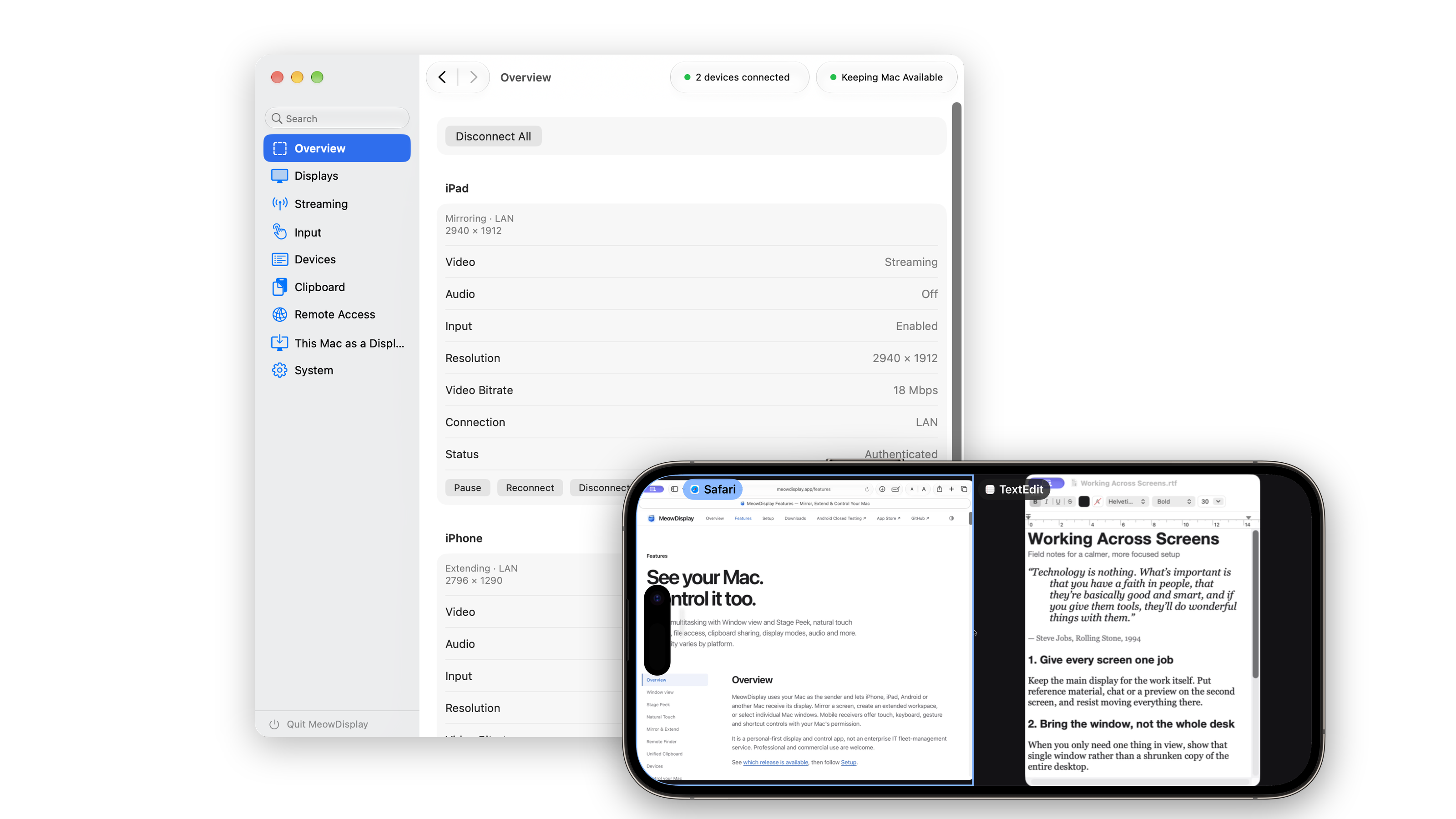
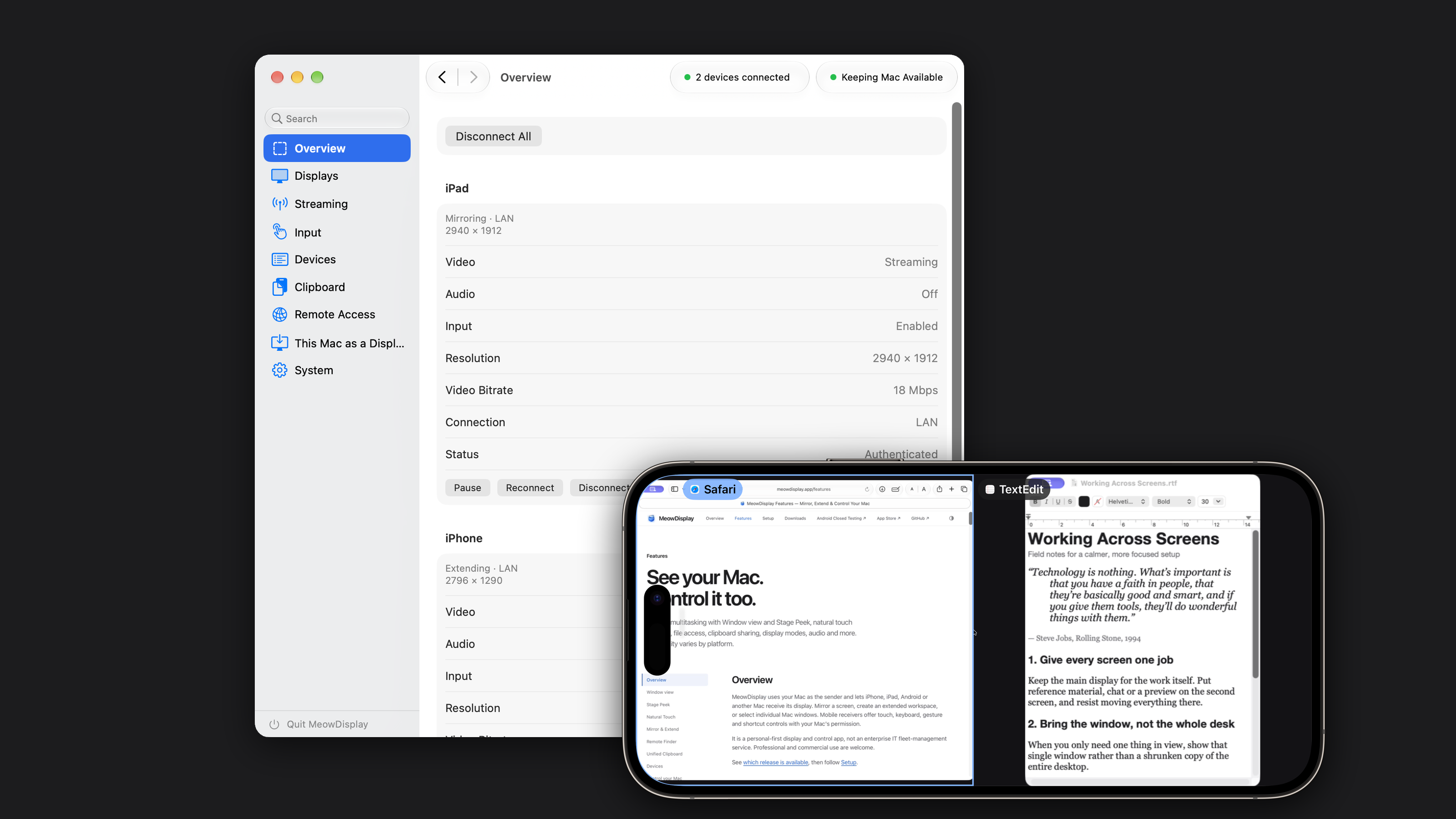
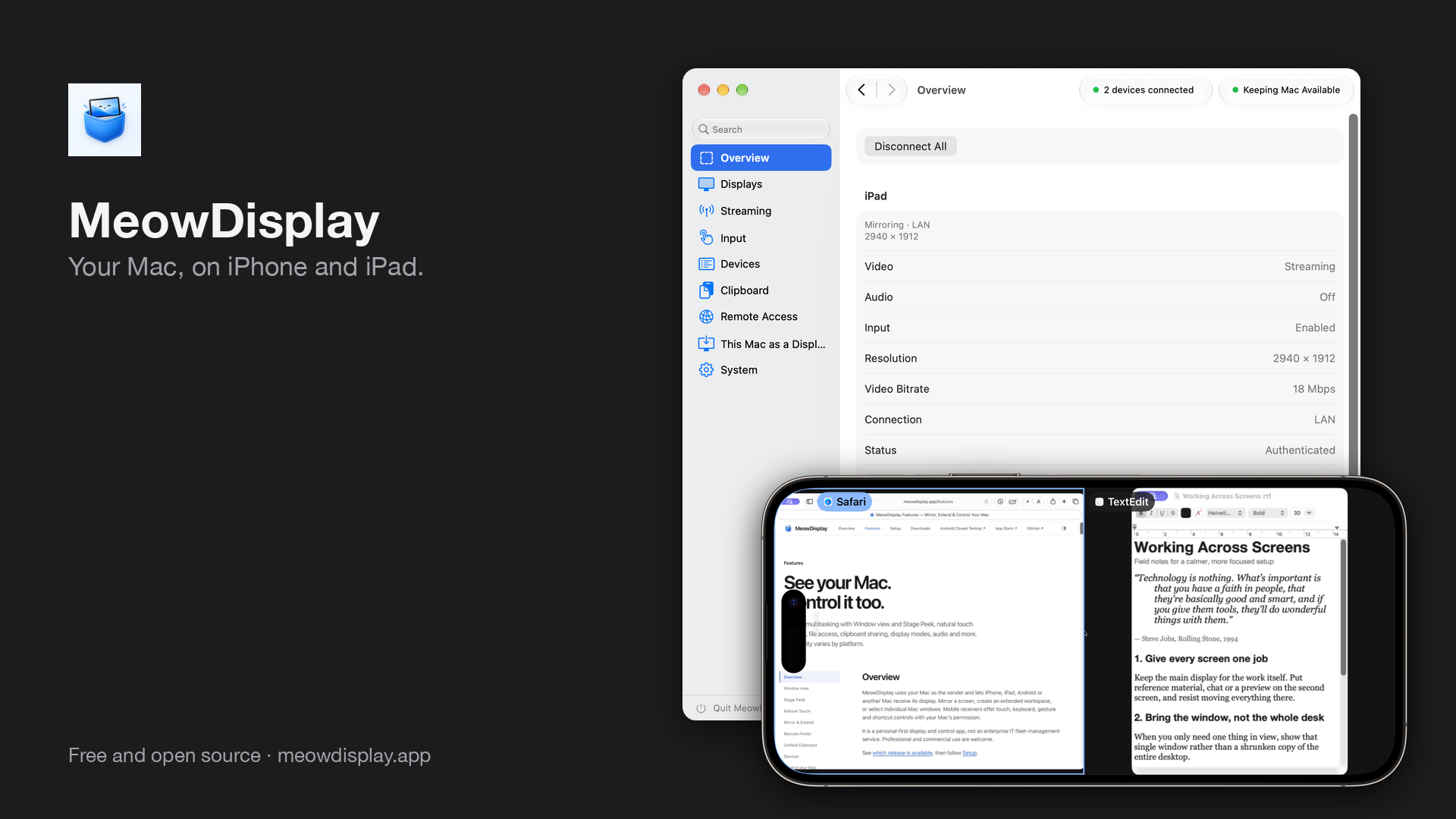
The MeowDisplay Mac app with two devices connected, and Mac windows side by side on an iPhone 14 Pro Max.
The MeowDisplay Mac app with two devices connected, and Mac windows side by side on an iPhone 14 Pro Max.3200 × 1800 · 899 KB · Download

Overview

Your Mac, on the screens you already own.

Mirror

The receiver shows the same Mac display you see and follows along as you work.

Extend

The receiver becomes a separate display that macOS arranges like any other monitor.

Window view

Pick individual Mac windows and arrange them in panes, instead of a shrunken desktop.

Price
Free, no subscription
Source
Open source, GPL-3.0 on GitHub
Mac
2.0.0 released · macOS 14 or later (receiver-only app: macOS 12 or later)
iPhone & iPad
2.0.0 released · iOS / iPadOS 16.4 or later · App Store
Android
Closed testing · Android 10 or later
Connections
USB (iPhone, iPad) · local Wi-Fi · Remote Access over your own private network, such as Tailscale
Developer
Jai Sukka (raiseCatError), independent

Features

Media by feature.

Each collection starts with the clearest real screenshot. Select any image for the original file.

Window view and layouts

Show individual Mac windows instead of a whole desktop, in splits or grids of up to nine panes on iPhone and iPad. Fewer, larger panes read best on a phone.
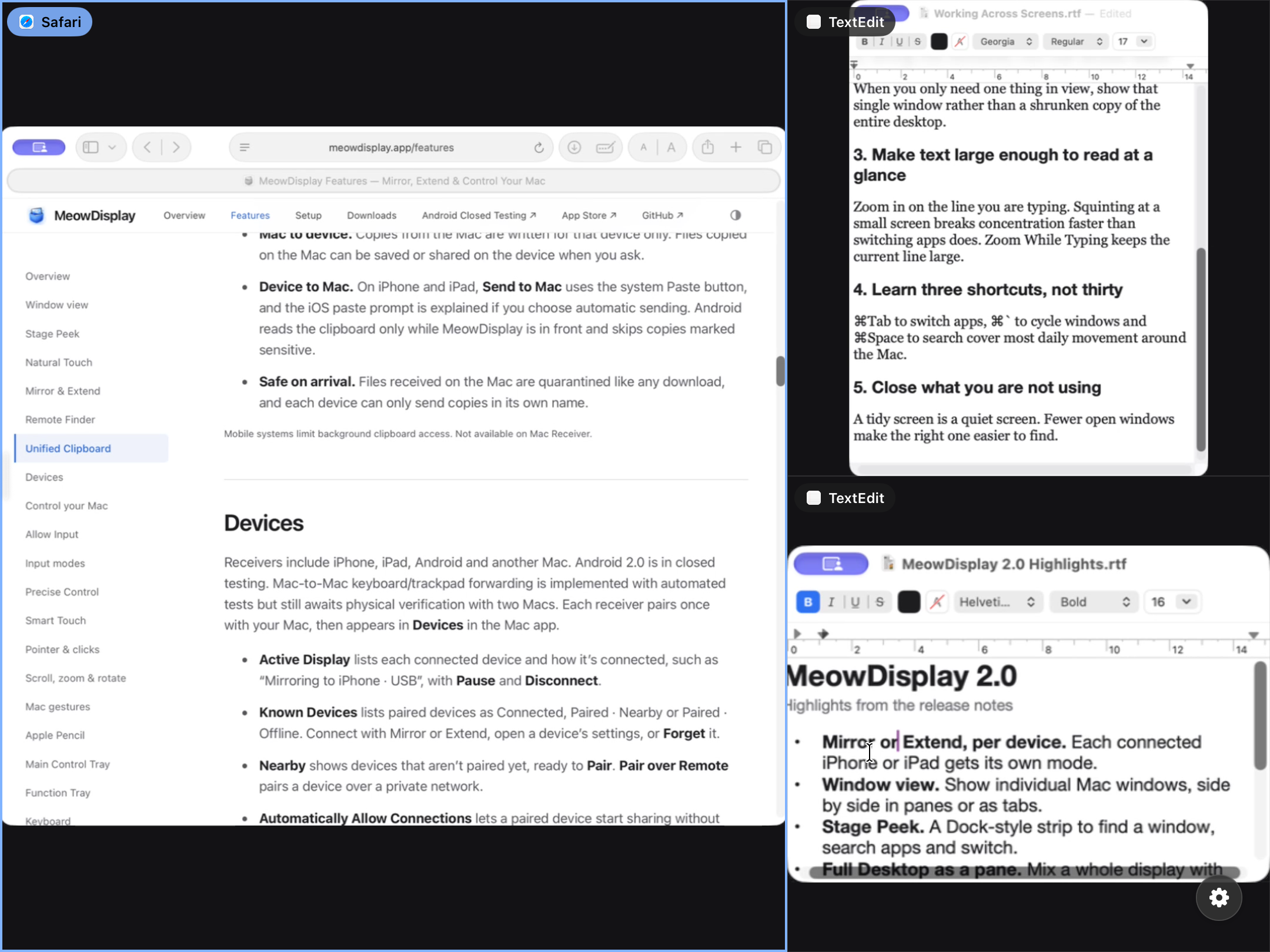
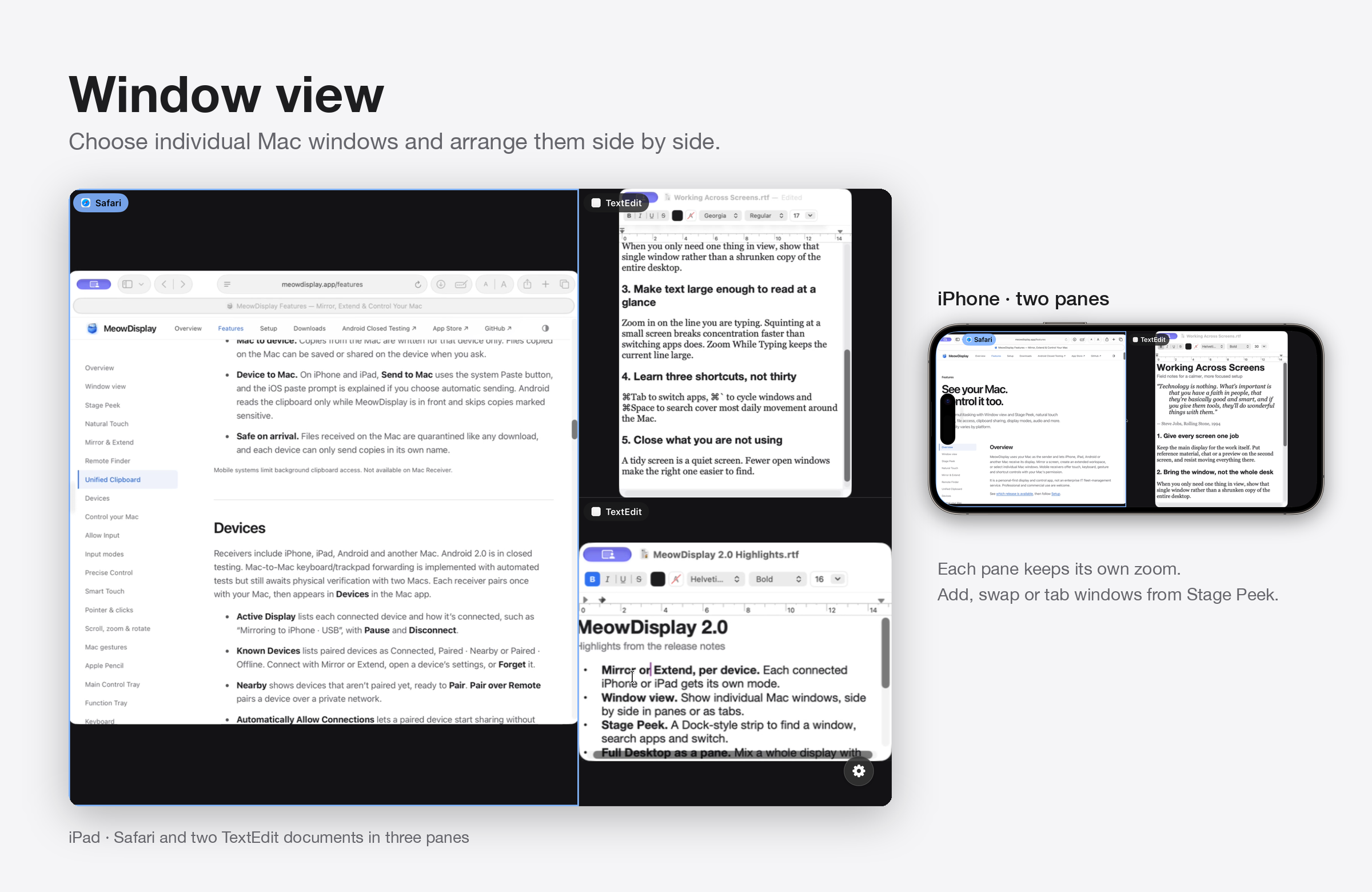
Window view on iPad: Safari with two TextEdit documents in three panes.
Window view on iPad: Safari with two TextEdit documents in three panes.iPad (9th generation), iPadOS 27.0.1 · 2160 × 1620 · 1.2 MB · Download
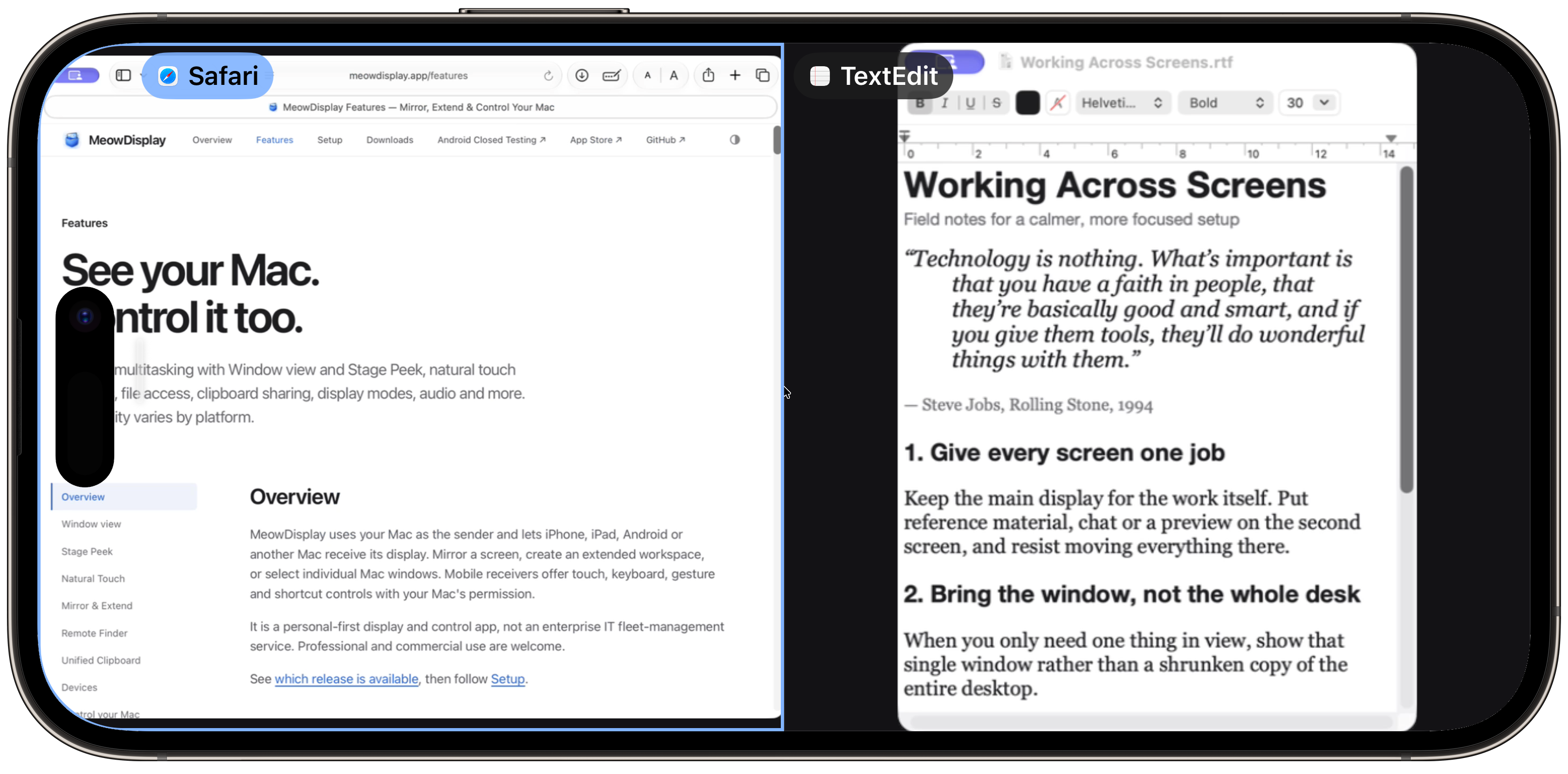
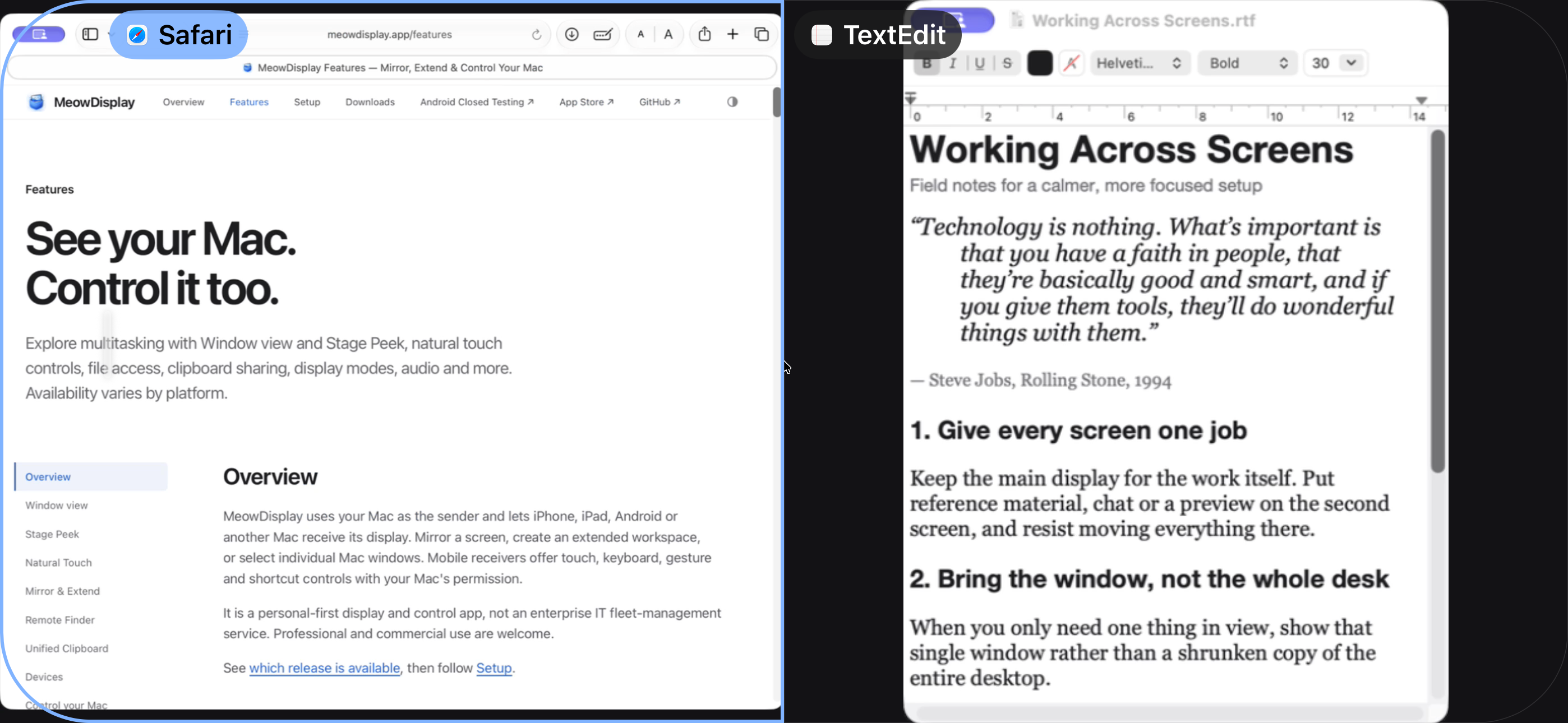
Window view on iPhone: Safari and a TextEdit document side by side.
Window view on iPhone: Safari and a TextEdit document side by side.iPhone 14 Pro Max, iOS 27.0.1 · 2796 × 1290 · 1.1 MB · Download
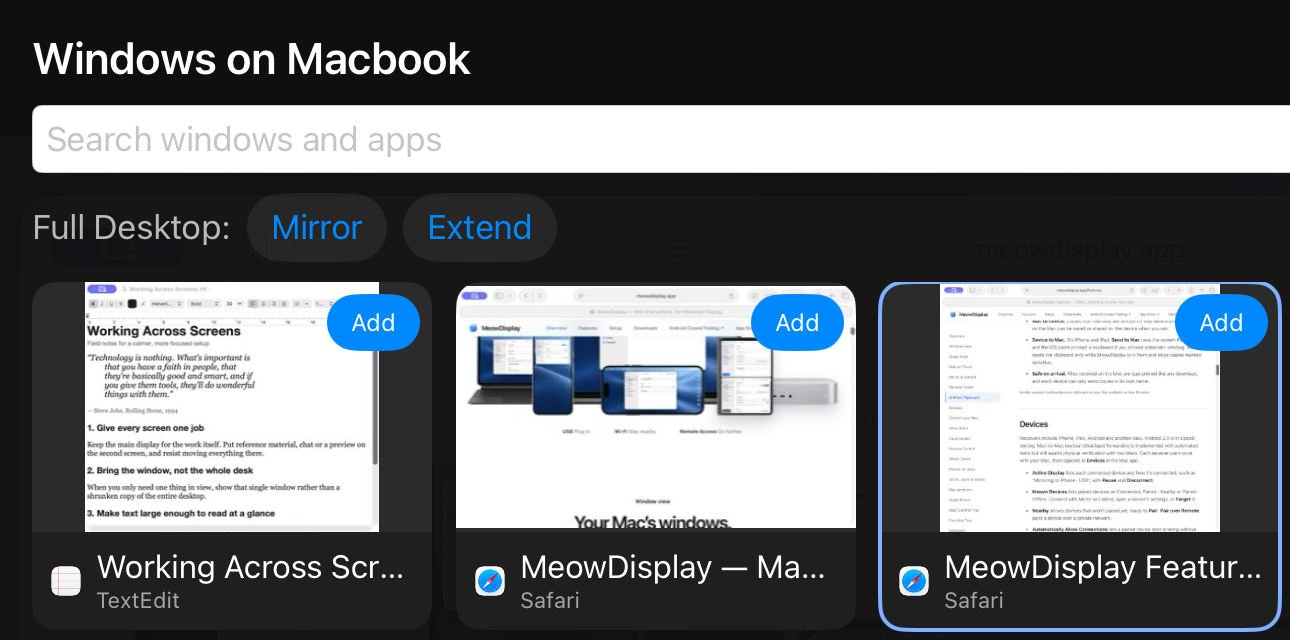
Choosing Mac windows on iPad, with Mirror and Extend (cropped to the first row).
Choosing Mac windows on iPad, with Mirror and Extend (cropped to the first row).iPad (9th generation), iPadOS 27.0.1 · 1290 × 640 · 249 KB · Download
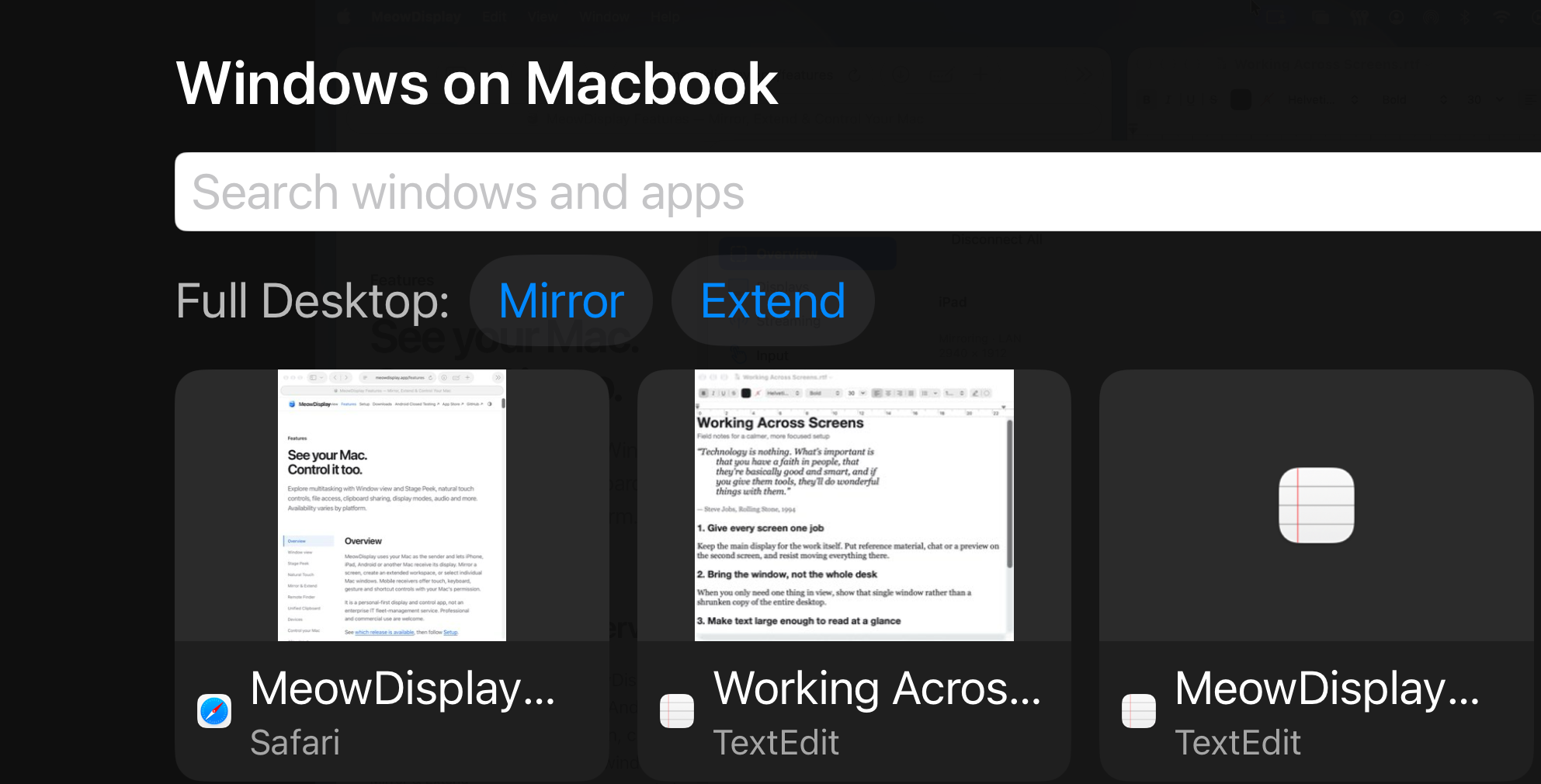
Choosing Mac windows on iPhone (cropped to the first row).
Choosing Mac windows on iPhone (cropped to the first row).iPhone 14 Pro Max, iOS 27.0.1 · 1985 × 1010 · 318 KB · Download

Stage Peek

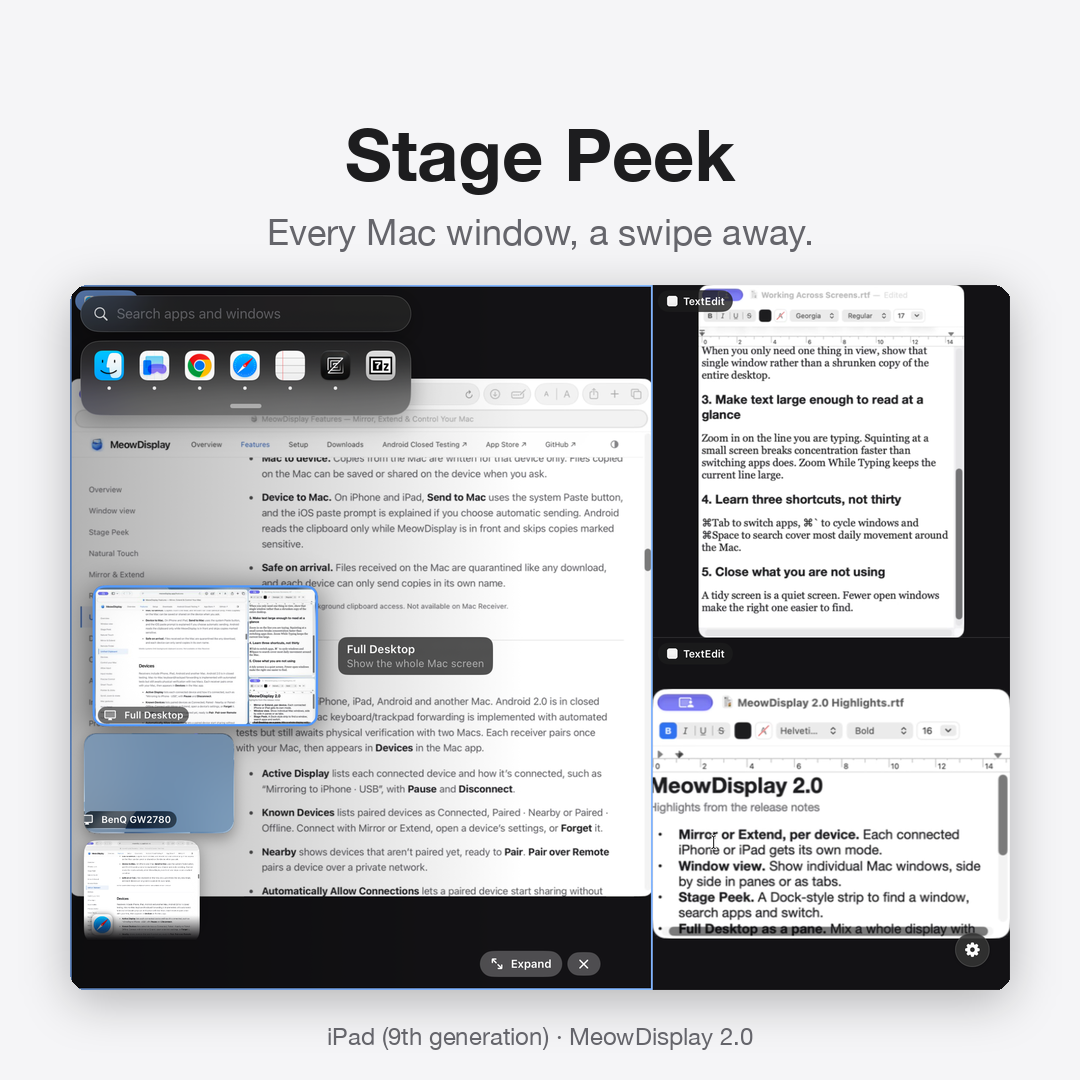
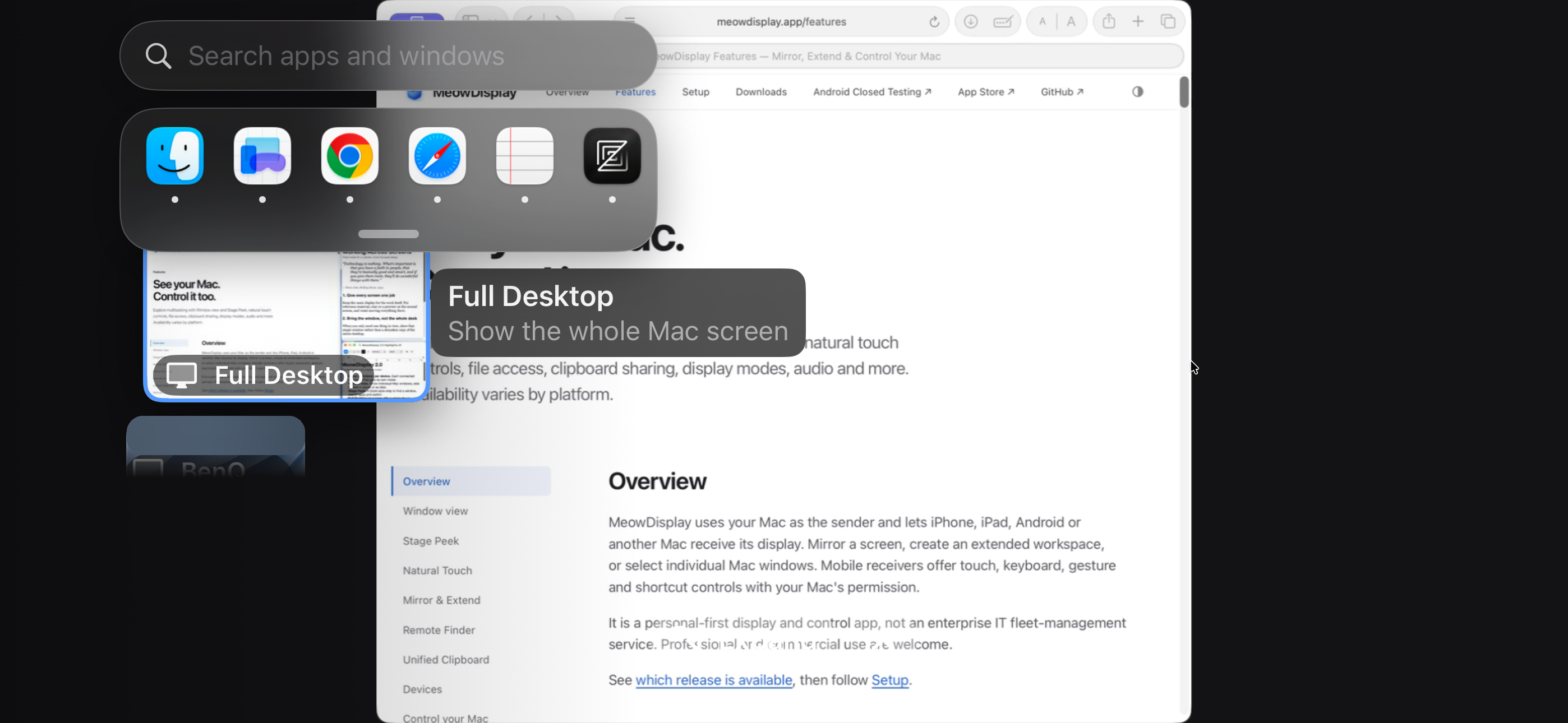
Swipe in from the edge to see running apps, open windows and the Mac's displays, then switch or add a pane.
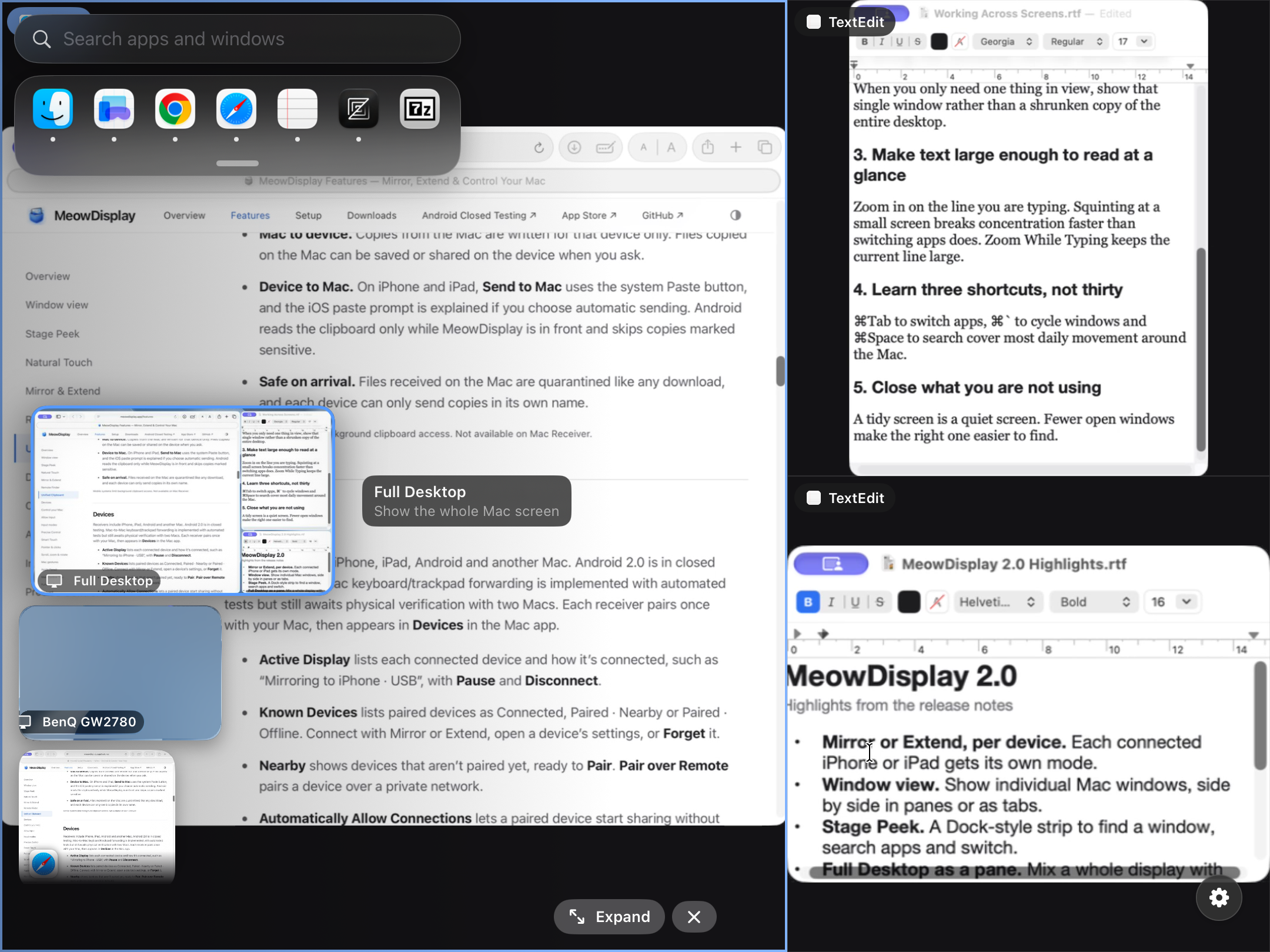
Stage Peek on iPad over a three-pane layout.
Stage Peek on iPad over a three-pane layout.iPad (9th generation), iPadOS 27.0.1 · 2160 × 1620 · 1.9 MB · Download
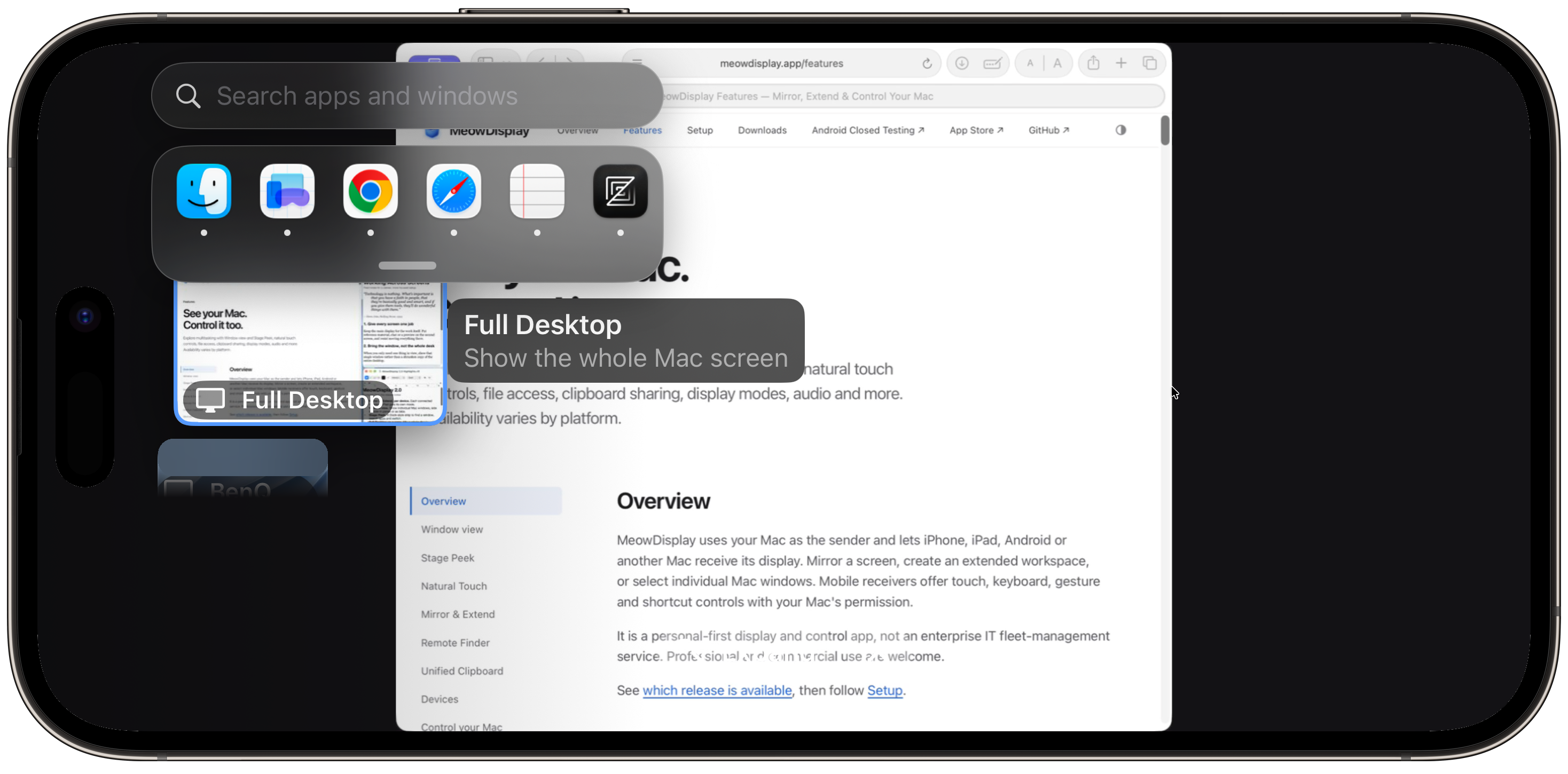
Stage Peek on iPhone: search, running apps and the Full Desktop card.
Stage Peek on iPhone: search, running apps and the Full Desktop card.iPhone 14 Pro Max, iOS 27.0.1 · 2796 × 1290 · 1.2 MB · Download

Touch, keyboard and typing

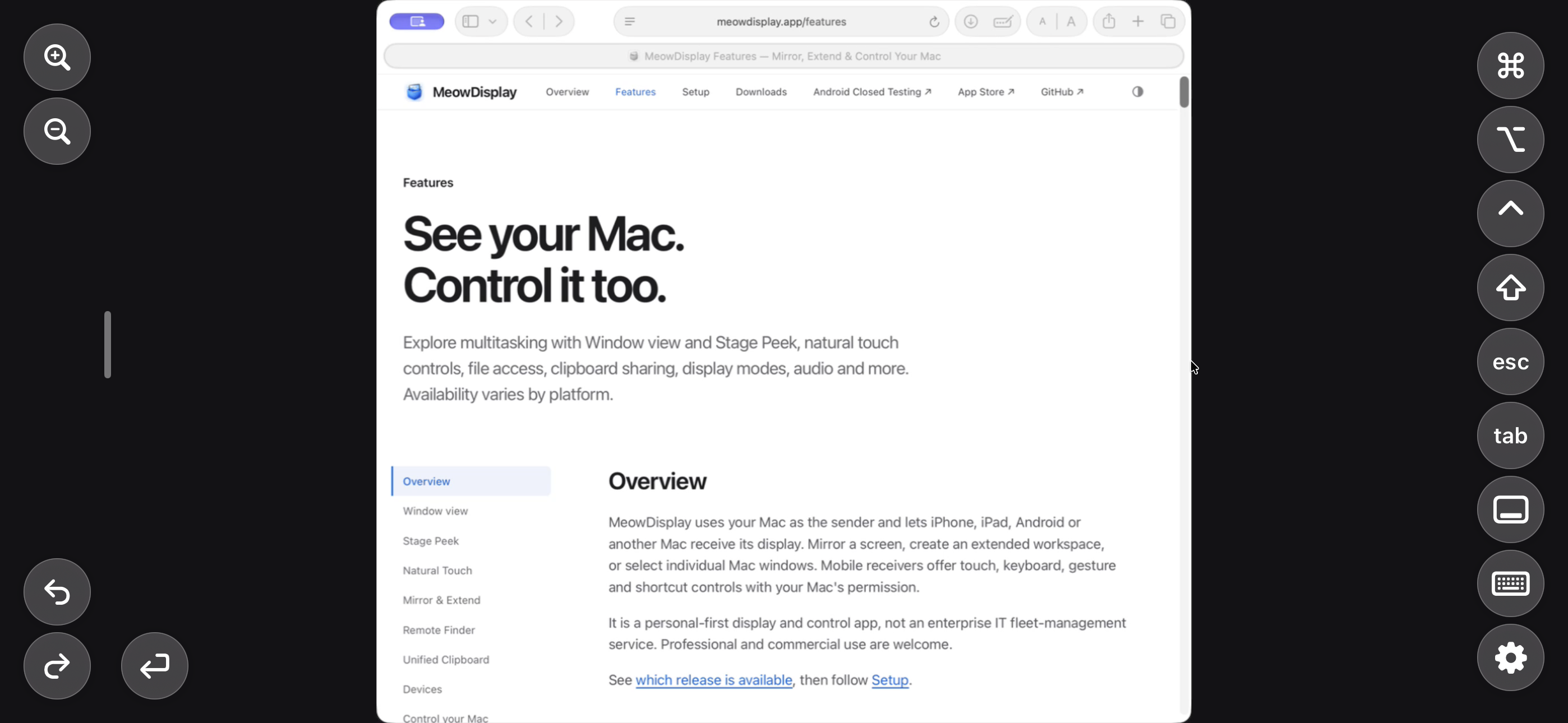
A control tray with modifier keys and shortcuts, three touch modes, a Text Bar and Zoom While Typing.
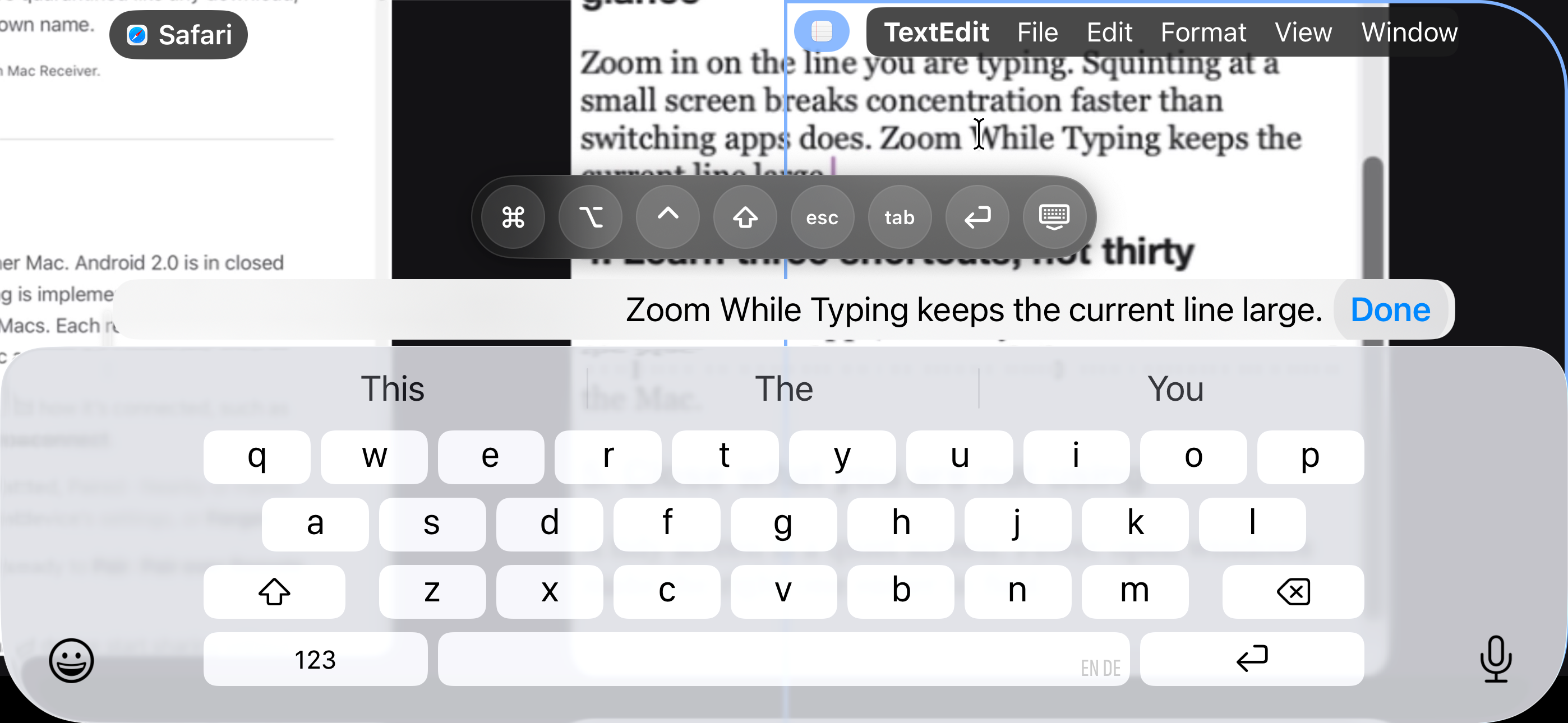
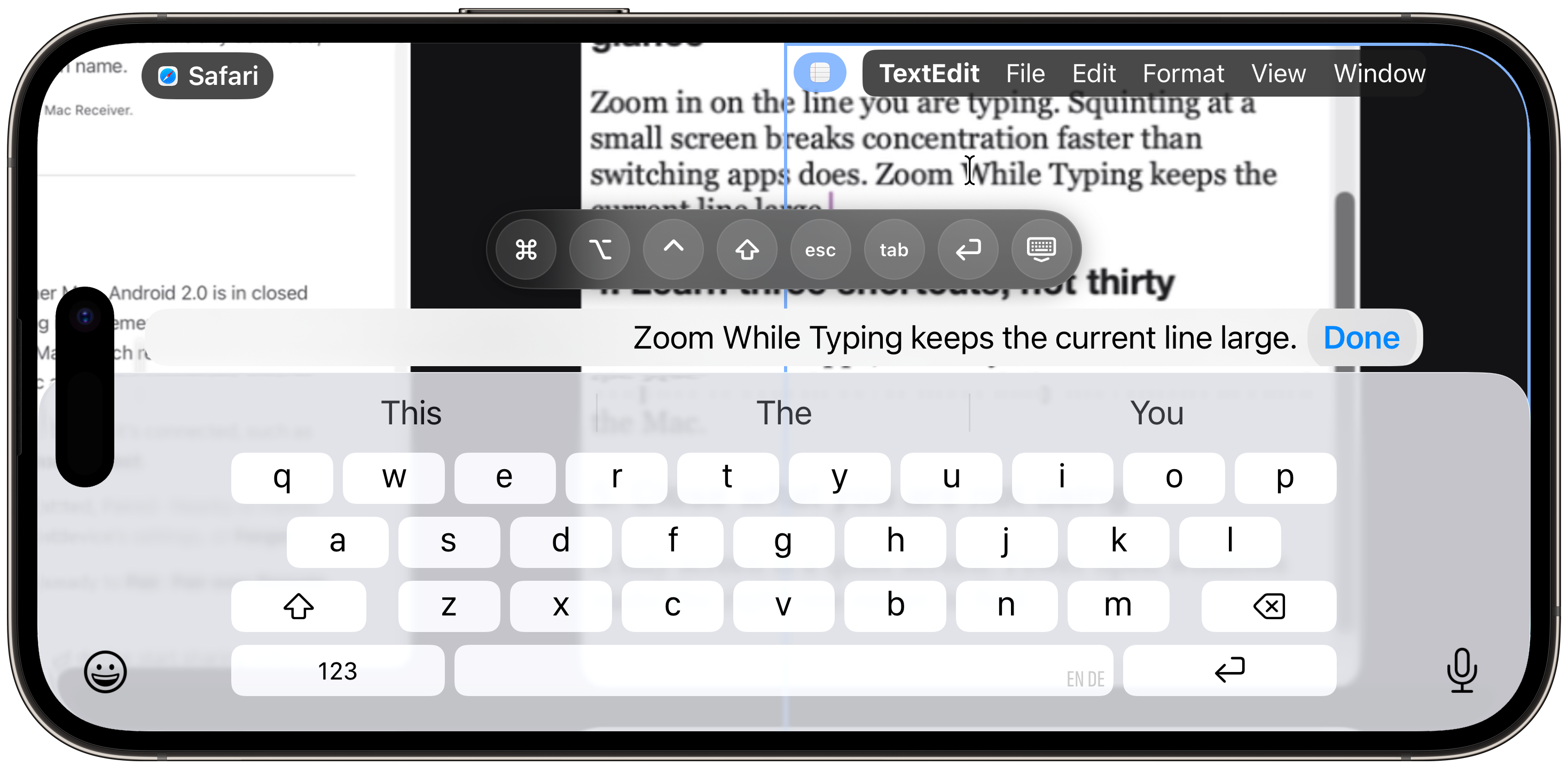
Typing on iPhone: Text Bar, keyboard and function row, with Zoom While Typing enlarging the TextEdit line.
Typing on iPhone: Text Bar, keyboard and function row, with Zoom While Typing enlarging the TextEdit line.iPhone 14 Pro Max, iOS 27.0.1 · 2796 × 1290 · 827 KB · Download
The control tray around a Safari window: zoom, undo, modifier keys, Escape, Tab, Return and keyboard.
The control tray around a Safari window: zoom, undo, modifier keys, Escape, Tab, Return and keyboard.iPhone 14 Pro Max, iOS 27.0.1 · 2796 × 1290 · 675 KB · Download
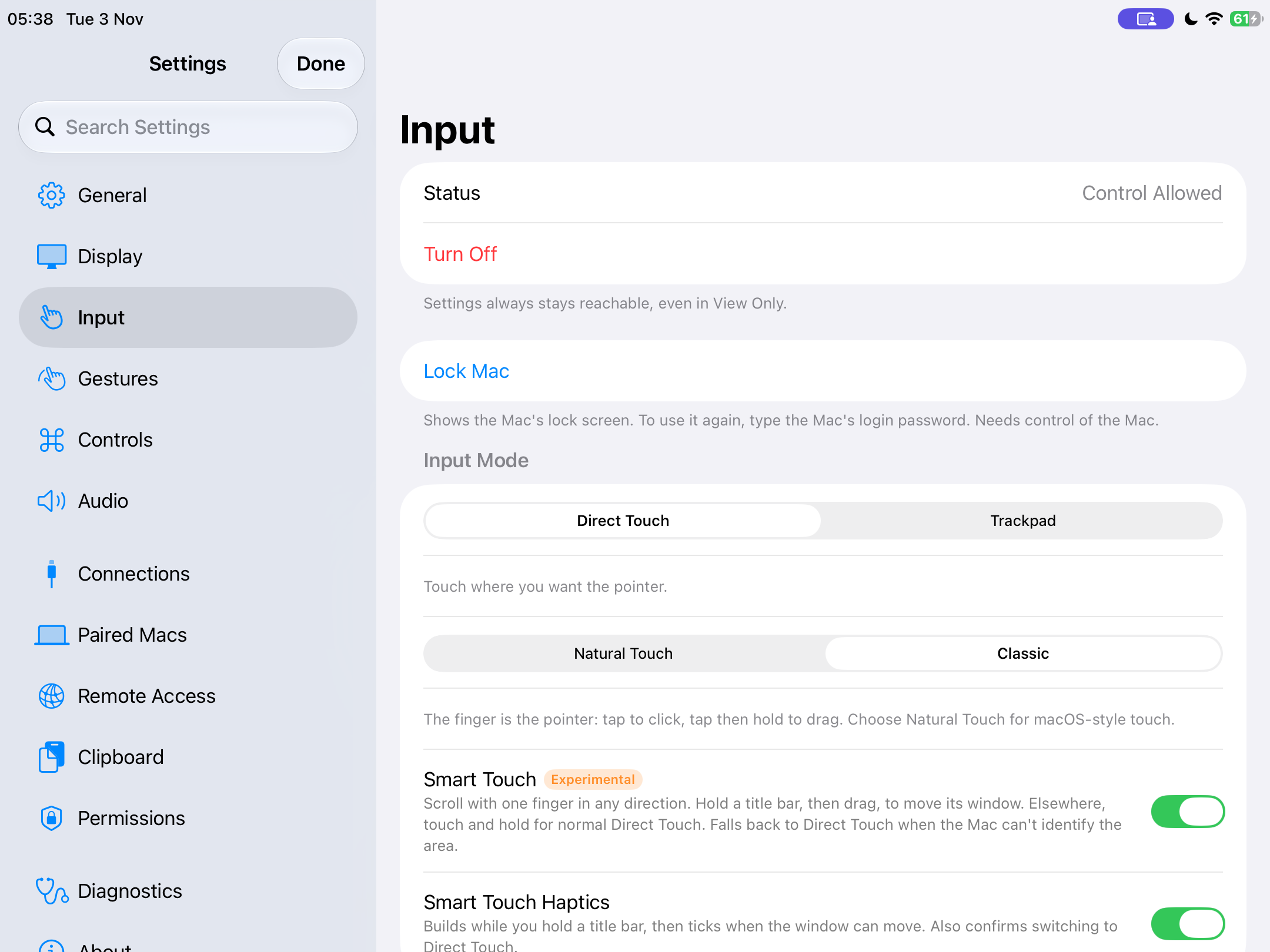
iPad input settings: Direct Touch or Trackpad, Natural Touch or Classic, Smart Touch.
iPad input settings: Direct Touch or Trackpad, Natural Touch or Classic, Smart Touch.iPad (9th generation), iPadOS 27.0.1 · 2160 × 1620 · 243 KB · Download

Mirror and Extend

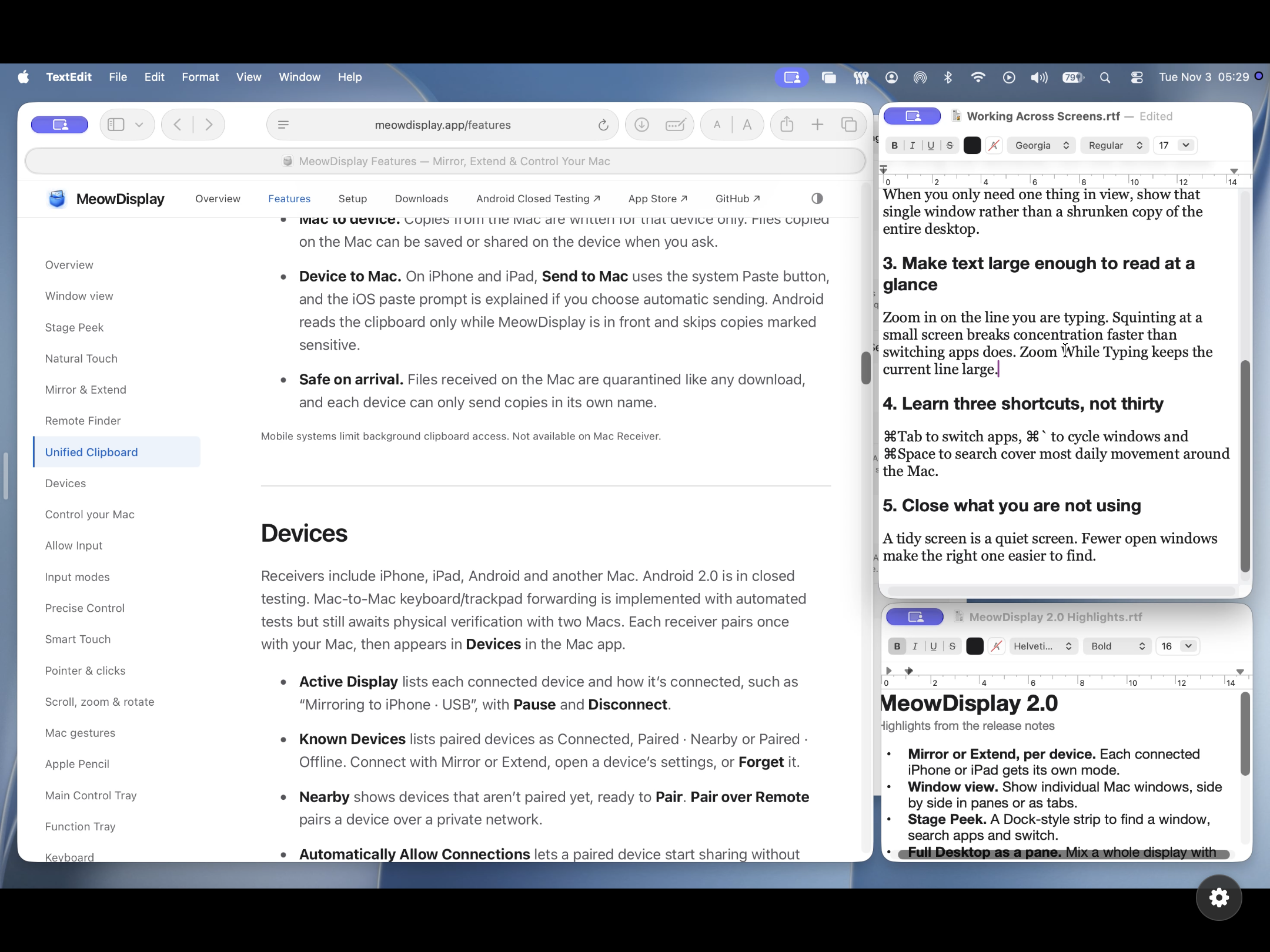
Mirror shows the display you see. Extend adds a separate display that macOS arranges like any other monitor.
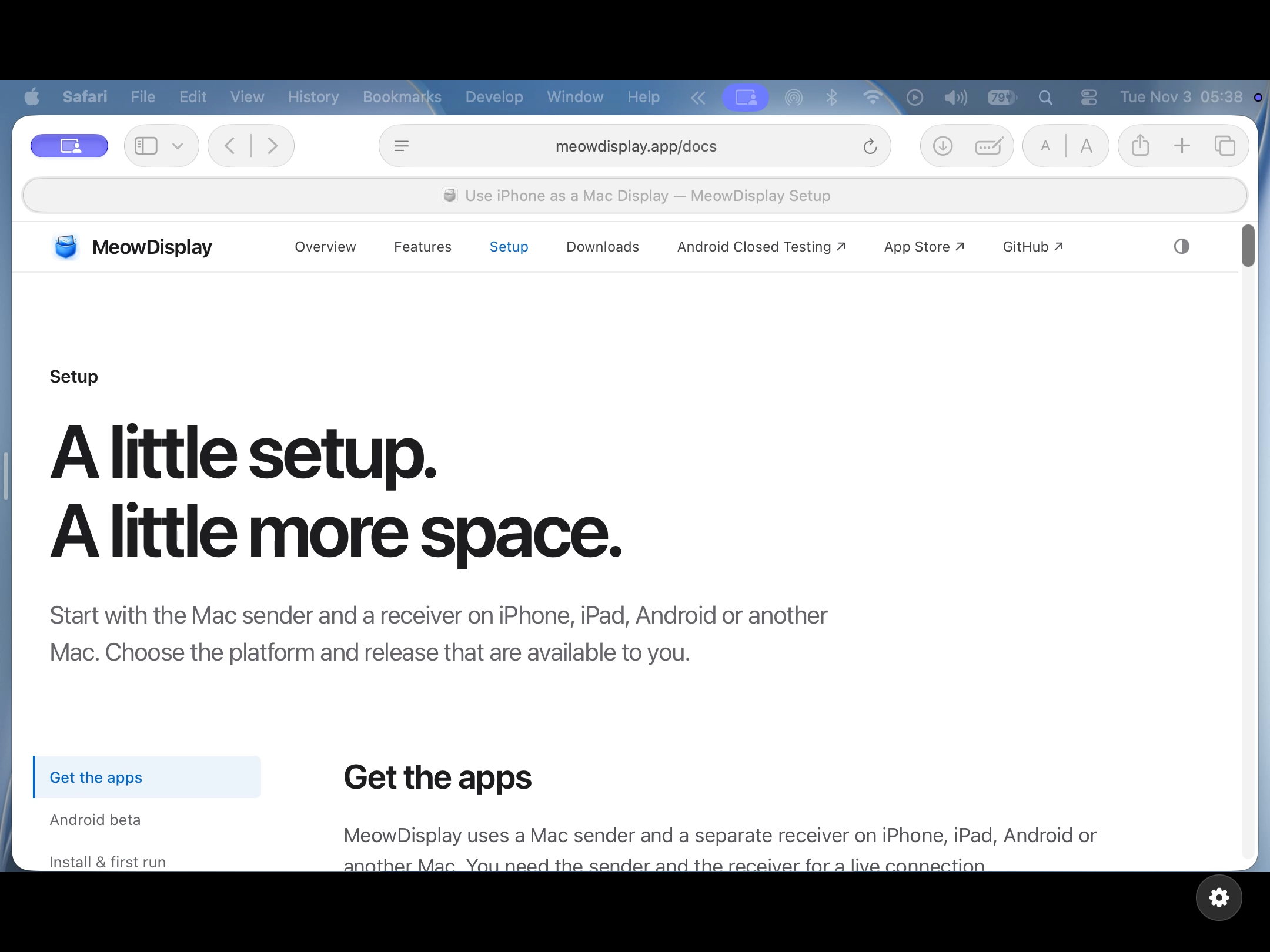
Extend: the iPad as a separate Mac display with its own menu bar.
Extend: the iPad as a separate Mac display with its own menu bar.iPad (9th generation), iPadOS 27.0.1 · 2160 × 1620 · 453 KB · Download
Mirror: the Mac desktop on iPad.
Mirror: the Mac desktop on iPad.iPad (9th generation), iPadOS 27.0.1 · 2160 × 1620 · 1.1 MB · Download
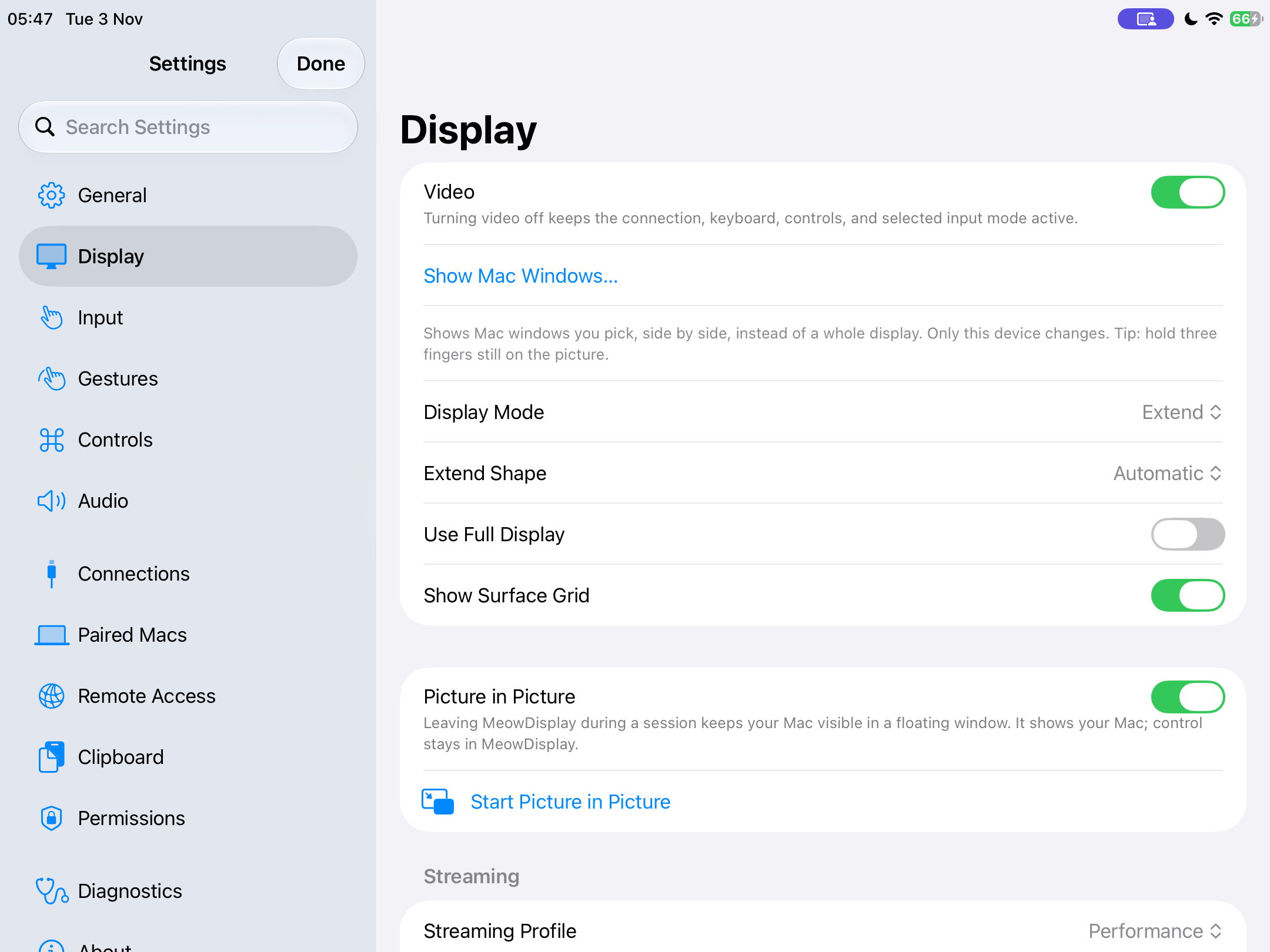
iPad display settings in Extend mode, with Picture in Picture.
iPad display settings in Extend mode, with Picture in Picture.iPad (9th generation), iPadOS 27.0.1 · 2160 × 1620 · 237 KB · Download

The Mac app

The Mac sends the picture, chooses each device's mode and keeps track of paired devices.
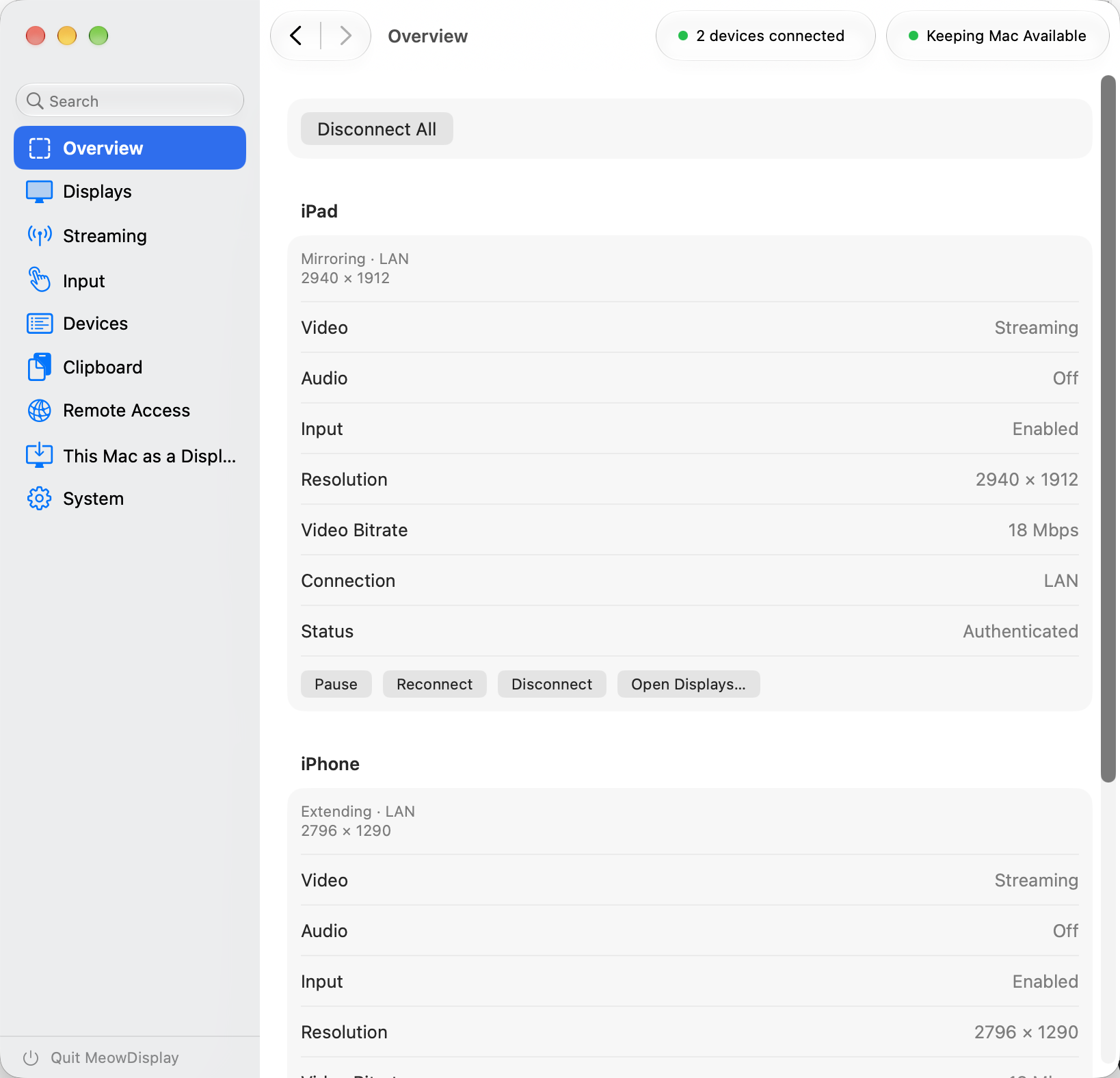
Mac app Overview with an iPhone and an iPad connected.
Mac app Overview with an iPhone and an iPad connected.MacBook Air (M2), macOS 27.0 · 1638 × 1576 · 173 KB · Download
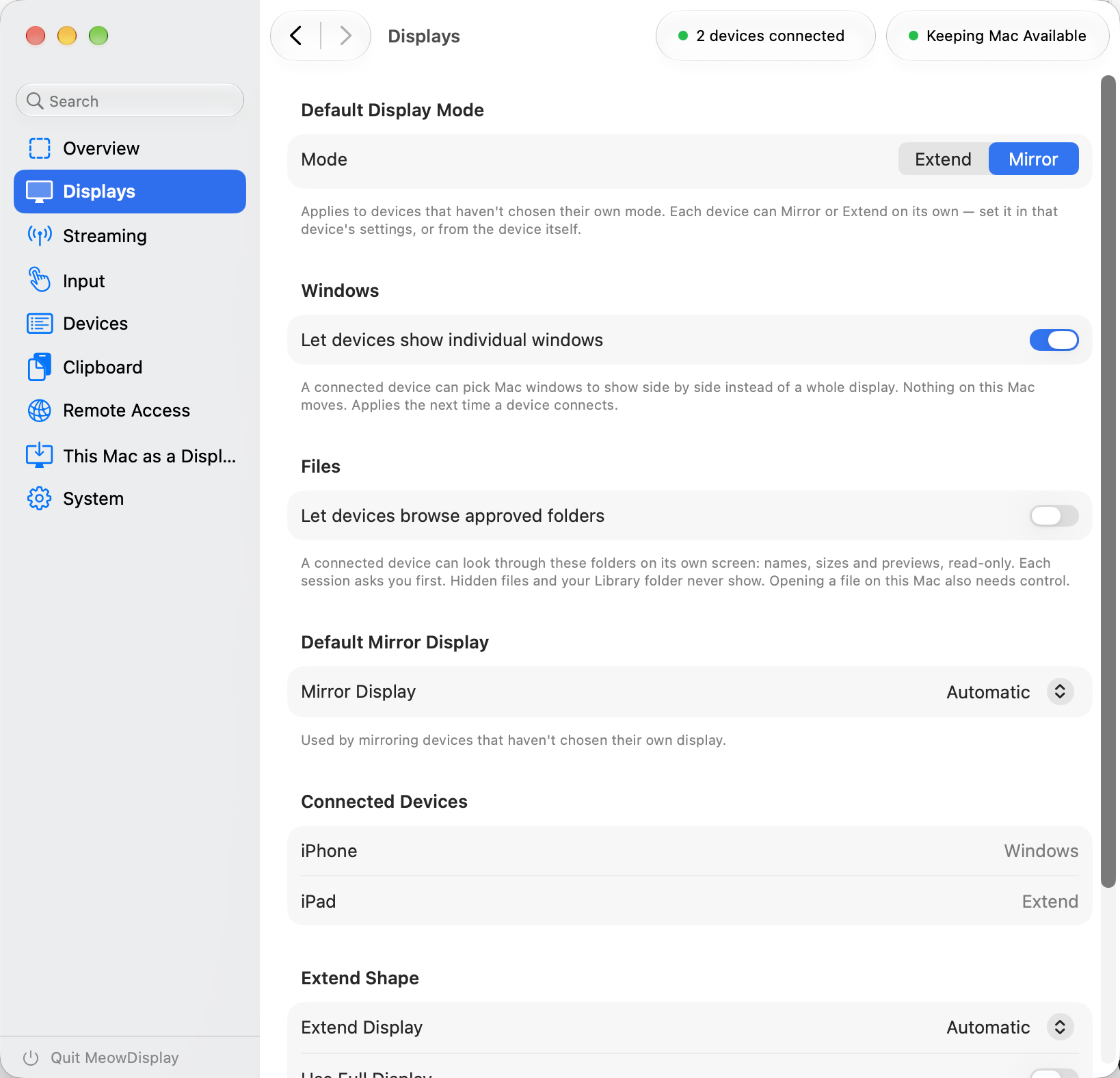
Mac app Displays: per-device modes, Window view and Extend options.
Mac app Displays: per-device modes, Window view and Extend options.MacBook Air (M2), macOS 27.0 · 1638 × 1576 · 235 KB · Download
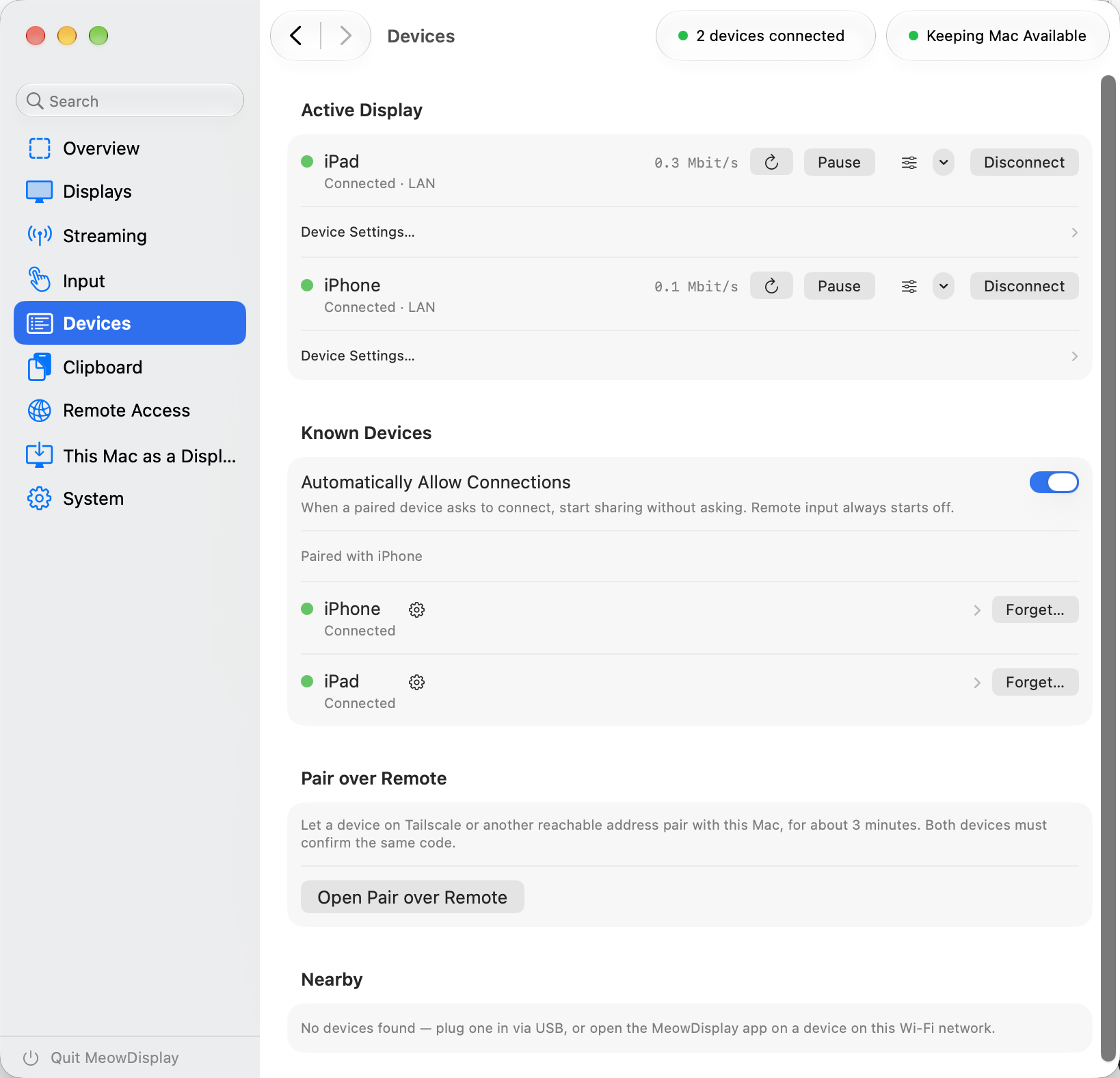
Mac app Devices: active displays, known devices and Pair over Remote.
Mac app Devices: active displays, known devices and Pair over Remote.MacBook Air (M2), macOS 27.0 · 1638 × 1576 · 218 KB · Download

Remote Access and security

Pairing with a matching code, TLS 1.3, and control granted per device and per session. Remote Access uses your own private network.
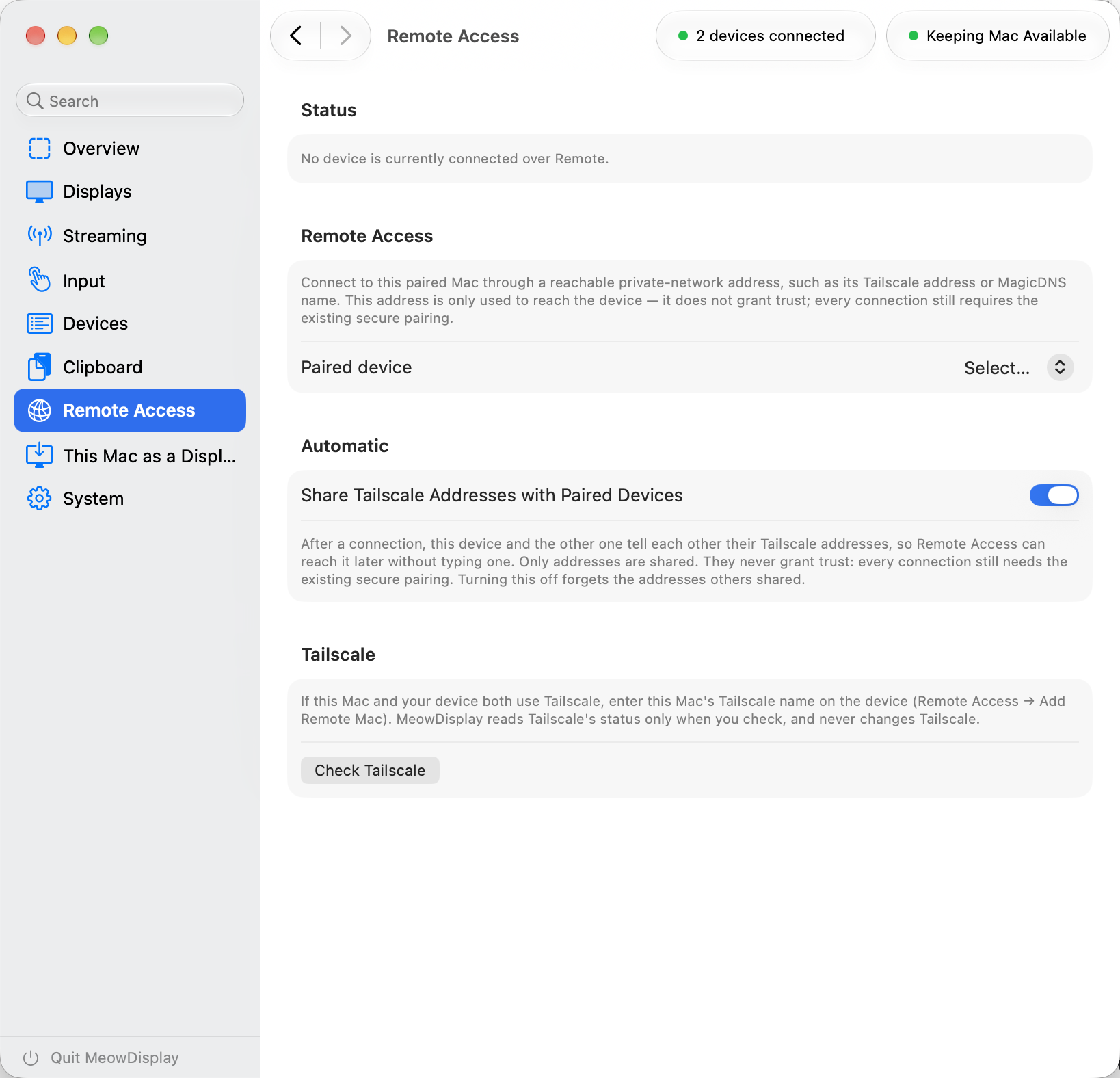
Mac app Remote Access: Tailscale-based private-network setup.
Mac app Remote Access: Tailscale-based private-network setup.MacBook Air (M2), macOS 27.0 · 1638 × 1576 · 204 KB · Download
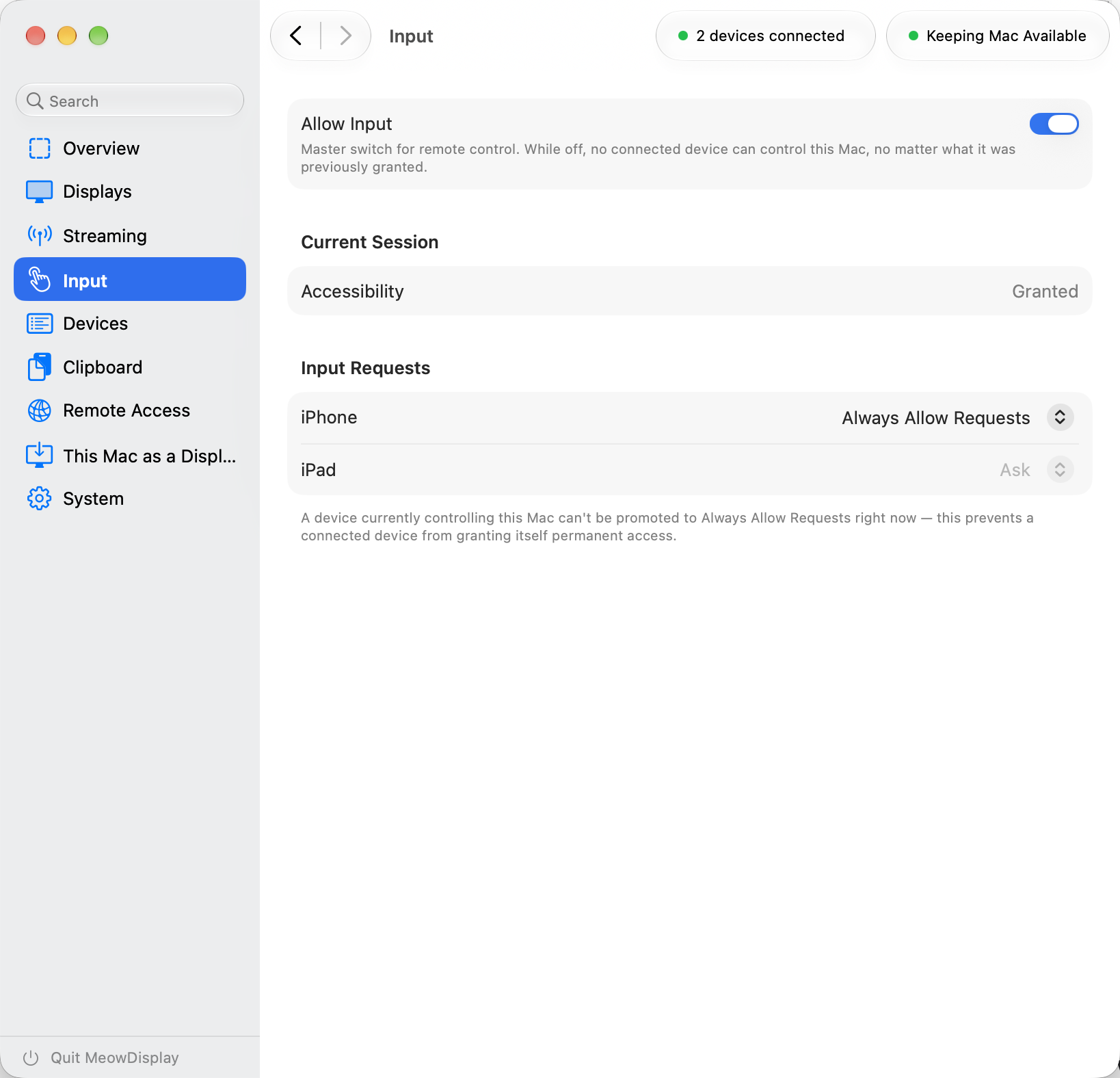
Mac app Input: master switch and per-device control requests.
Mac app Input: master switch and per-device control requests.MacBook Air (M2), macOS 27.0 · 1638 × 1576 · 159 KB · Download

Screenshots

Original screenshots.

Native-resolution captures of the released 2.0.0 apps on a physical iPhone 14 Pro Max, iPad (9th generation) and MacBook Air (M2), with demonstration content only. The only edits: two window-picker images are cropped, and the external-display thumbnail in the two Stage Peek images is blurred to remove a third-party wallpaper.

Mac app Devices: active displays, known devices and Pair over Remote.
Mac app Devices: active displays, known devices and Pair over Remote.MacBook Air (M2), macOS 27.0 · 1638 × 1576 · 218 KB · Download
Mac app Displays: per-device modes, Window view and Extend options.
Mac app Displays: per-device modes, Window view and Extend options.MacBook Air (M2), macOS 27.0 · 1638 × 1576 · 235 KB · Download
Mac app Input: master switch and per-device control requests.
Mac app Input: master switch and per-device control requests.MacBook Air (M2), macOS 27.0 · 1638 × 1576 · 159 KB · Download
Mac app Overview with an iPhone and an iPad connected.
Mac app Overview with an iPhone and an iPad connected.MacBook Air (M2), macOS 27.0 · 1638 × 1576 · 173 KB · Download
Mac app Remote Access: Tailscale-based private-network setup.
Mac app Remote Access: Tailscale-based private-network setup.MacBook Air (M2), macOS 27.0 · 1638 × 1576 · 204 KB · Download
Extend: the iPad as a separate Mac display with its own menu bar.
Extend: the iPad as a separate Mac display with its own menu bar.iPad (9th generation), iPadOS 27.0.1 · 2160 × 1620 · 453 KB · Download
Mirror: the Mac desktop on iPad.
Mirror: the Mac desktop on iPad.iPad (9th generation), iPadOS 27.0.1 · 2160 × 1620 · 1.1 MB · Download
iPad display settings in Extend mode, with Picture in Picture.
iPad display settings in Extend mode, with Picture in Picture.iPad (9th generation), iPadOS 27.0.1 · 2160 × 1620 · 237 KB · Download
iPad input settings: Direct Touch or Trackpad, Natural Touch or Classic, Smart Touch.
iPad input settings: Direct Touch or Trackpad, Natural Touch or Classic, Smart Touch.iPad (9th generation), iPadOS 27.0.1 · 2160 × 1620 · 243 KB · Download
Stage Peek on iPad over a three-pane layout.
Stage Peek on iPad over a three-pane layout.iPad (9th generation), iPadOS 27.0.1 · 2160 × 1620 · 1.9 MB · Download
Choosing Mac windows on iPad, with Mirror and Extend (cropped to the first row).
Choosing Mac windows on iPad, with Mirror and Extend (cropped to the first row).iPad (9th generation), iPadOS 27.0.1 · 1290 × 640 · 249 KB · Download
Window view on iPad: Safari with two TextEdit documents in three panes.
Window view on iPad: Safari with two TextEdit documents in three panes.iPad (9th generation), iPadOS 27.0.1 · 2160 × 1620 · 1.2 MB · Download
The control tray around a Safari window: zoom, undo, modifier keys, Escape, Tab, Return and keyboard.
The control tray around a Safari window: zoom, undo, modifier keys, Escape, Tab, Return and keyboard.iPhone 14 Pro Max, iOS 27.0.1 · 2796 × 1290 · 675 KB · Download
Stage Peek on iPhone: search, running apps and the Full Desktop card.
Stage Peek on iPhone: search, running apps and the Full Desktop card.iPhone 14 Pro Max, iOS 27.0.1 · 2796 × 1290 · 1.2 MB · Download
Typing on iPhone: Text Bar, keyboard and function row, with Zoom While Typing enlarging the TextEdit line.
Typing on iPhone: Text Bar, keyboard and function row, with Zoom While Typing enlarging the TextEdit line.iPhone 14 Pro Max, iOS 27.0.1 · 2796 × 1290 · 827 KB · Download
Choosing Mac windows on iPhone (cropped to the first row).
Choosing Mac windows on iPhone (cropped to the first row).iPhone 14 Pro Max, iOS 27.0.1 · 1985 × 1010 · 318 KB · Download
Window view on iPhone: Safari and a TextEdit document side by side.
Window view on iPhone: Safari and a TextEdit document side by side.iPhone 14 Pro Max, iOS 27.0.1 · 2796 × 1290 · 1.1 MB · Download

Download all screenshots · ZIP · 10.0 MB

Device mockups

Real screens, real hardware.

Transparent PNGs: iPhone screenshots composited into Apple's official iPhone 14 Pro Max frame. The Mac app is distributed outside the App Store, so it is shown as an unframed window rather than in a MacBook frame. Apple no longer publishes an iPad (9th generation) frame, so iPad images are supplied as screenshots.
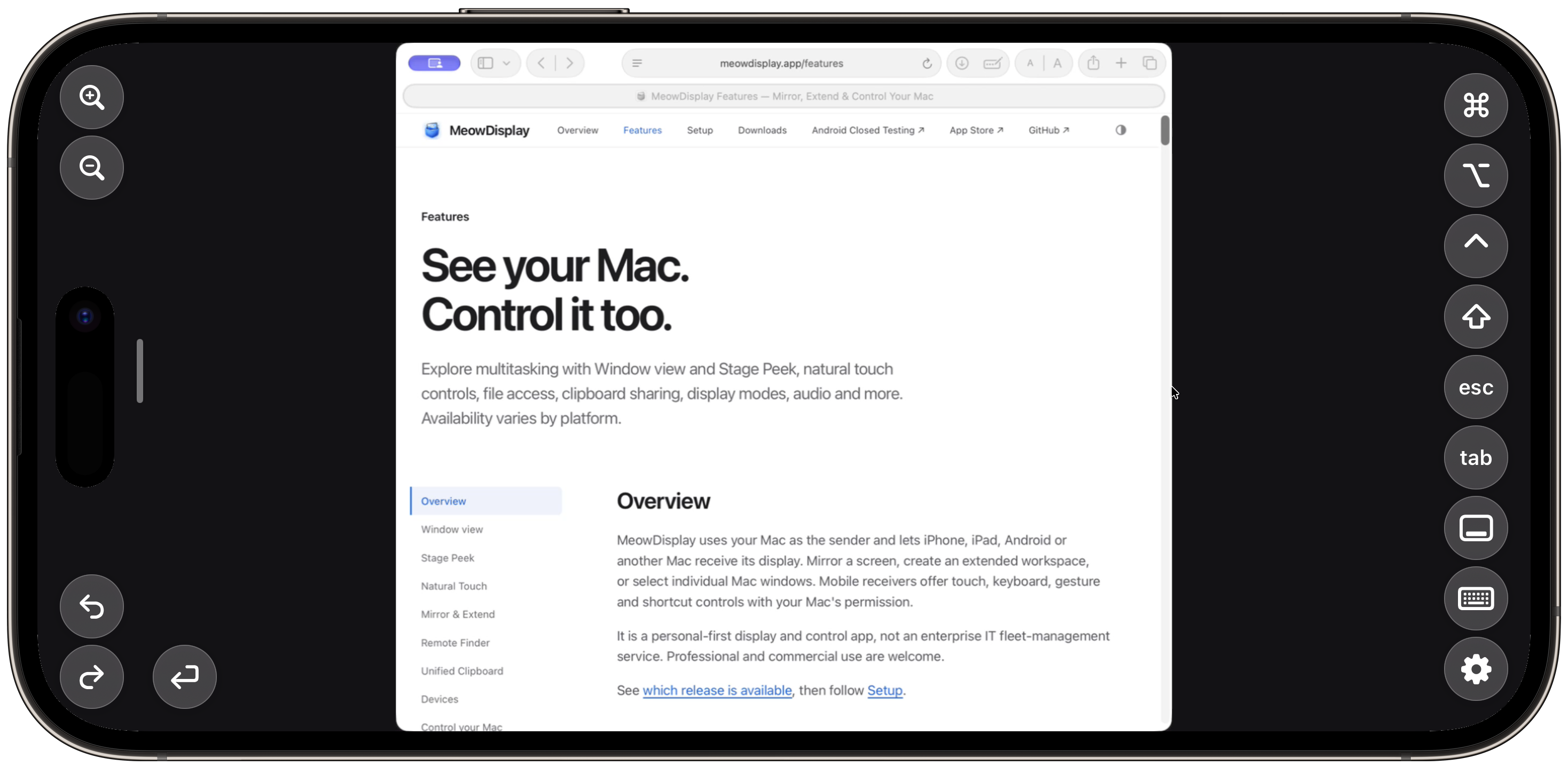
Mockup iPhone Control Tray
Mockup iPhone Control Tray2936 × 1450 · 916 KB · Download
Mockup iPhone Stage Peek
Mockup iPhone Stage Peek2936 × 1450 · 1.5 MB · Download
Mockup iPhone Typing
Mockup iPhone Typing2936 × 1450 · 1.0 MB · Download
Mockup iPhone Window View
Mockup iPhone Window View2936 × 1450 · 1.3 MB · Download

Download all mockups · ZIP · 4.6 MB

B-roll

Clean footage for your edit.

Screen recordings of real sessions on the physical devices, trimmed only. No music, voice, captions or logos. Native-resolution and 1080p versions; see the shot list.

iPad Extend Touch Scrolling1080p MP4 · 1.4 MB · Native MP4 · 2.3 MB
iPhone Typing Zoom While Typing1080p MP4 · 2.6 MB · Native MP4 · 4.4 MB

Download all video · ZIP · 11.1 MB

Promotional graphics

Ready-made compositions.

Layouts built from the real mockups and screenshots for articles, social posts and thumbnails. They are promotional graphics, not raw screenshots.
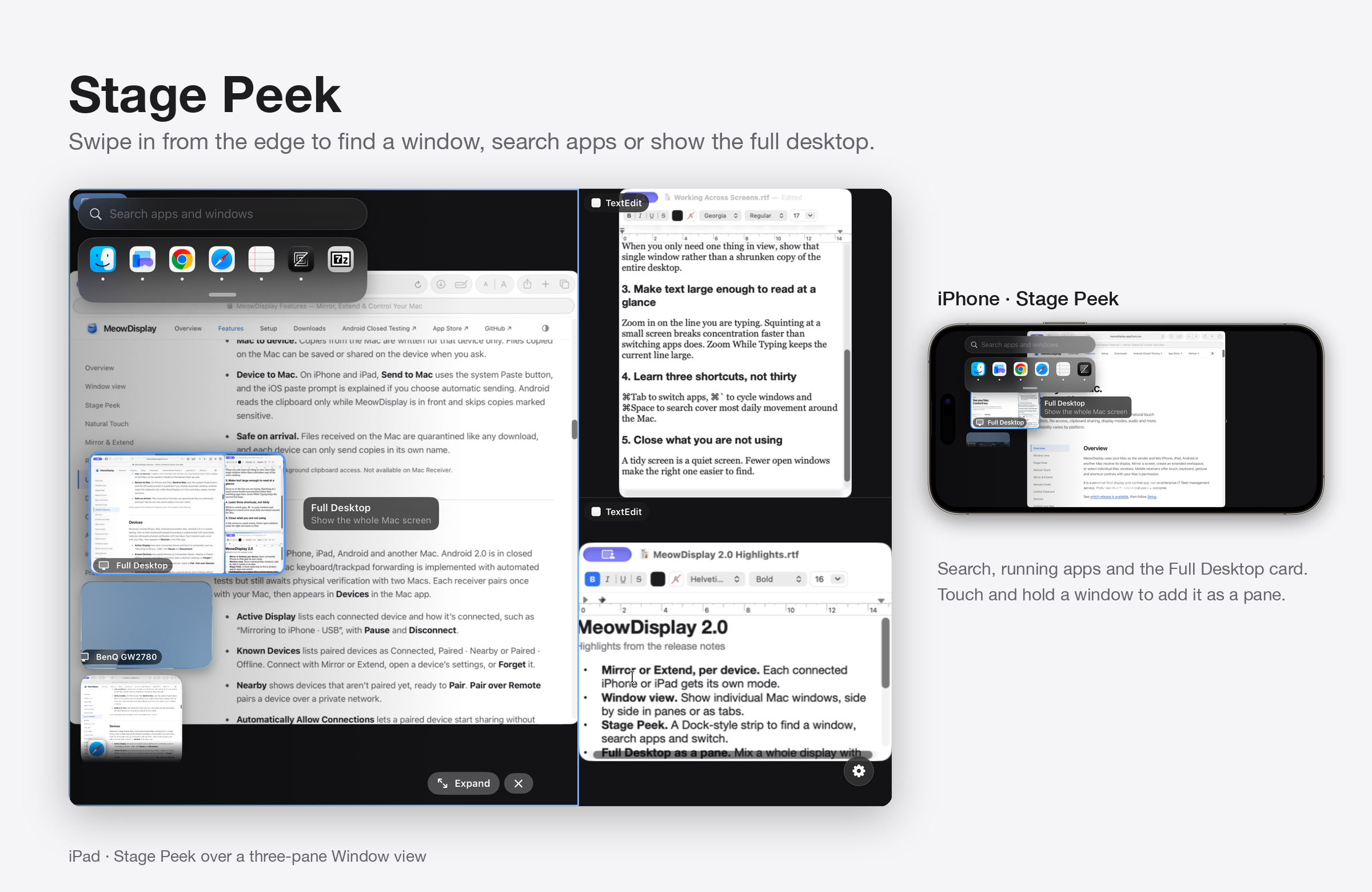
Feature Stage Peek
Feature Stage Peek2400 × 1560 · 1.2 MB · Download
Feature Window View
Feature Window View2400 × 1560 · 919 KB · Download
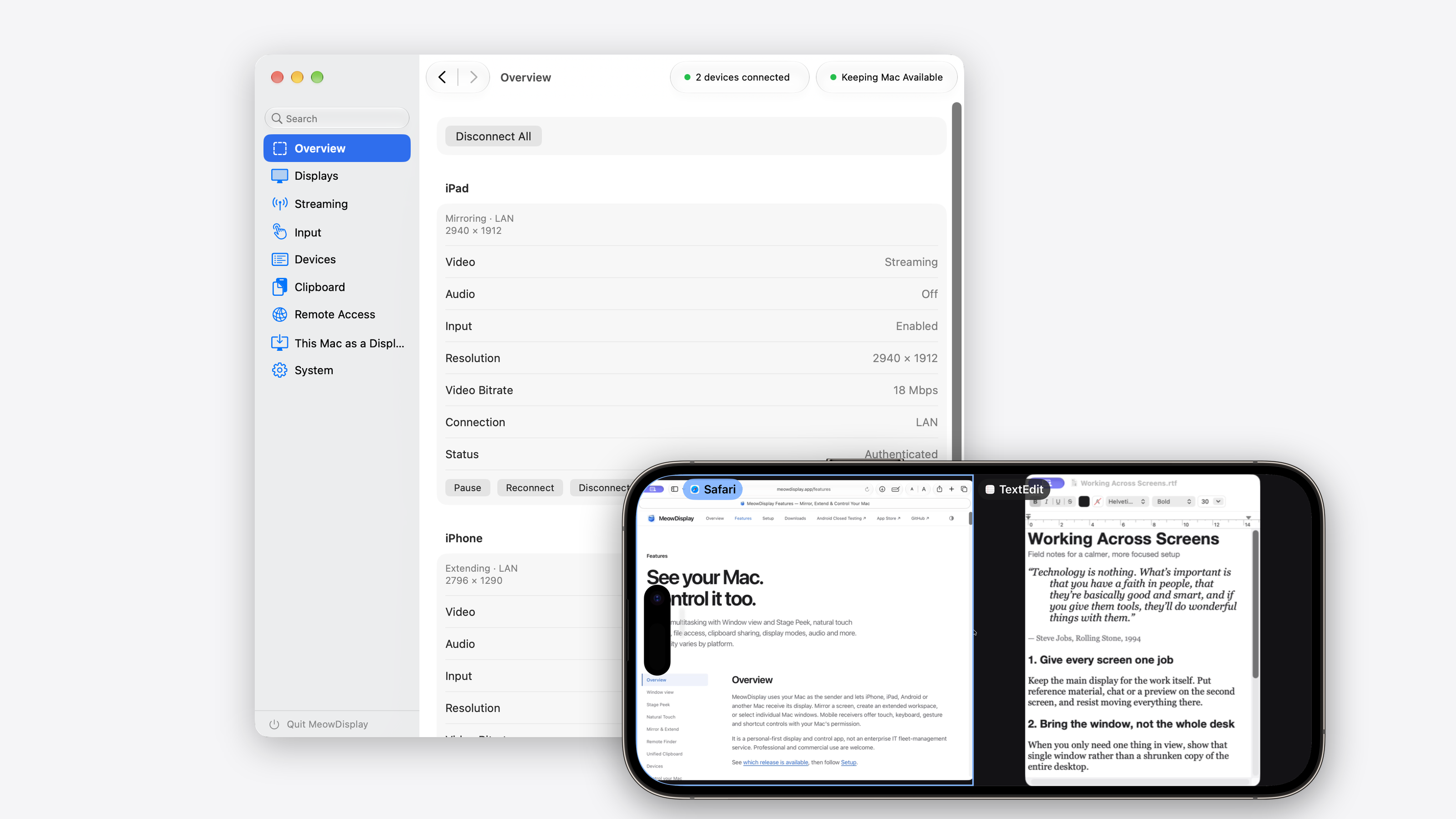
Hero Dark
Hero Dark3200 × 1800 · 804 KB · Download
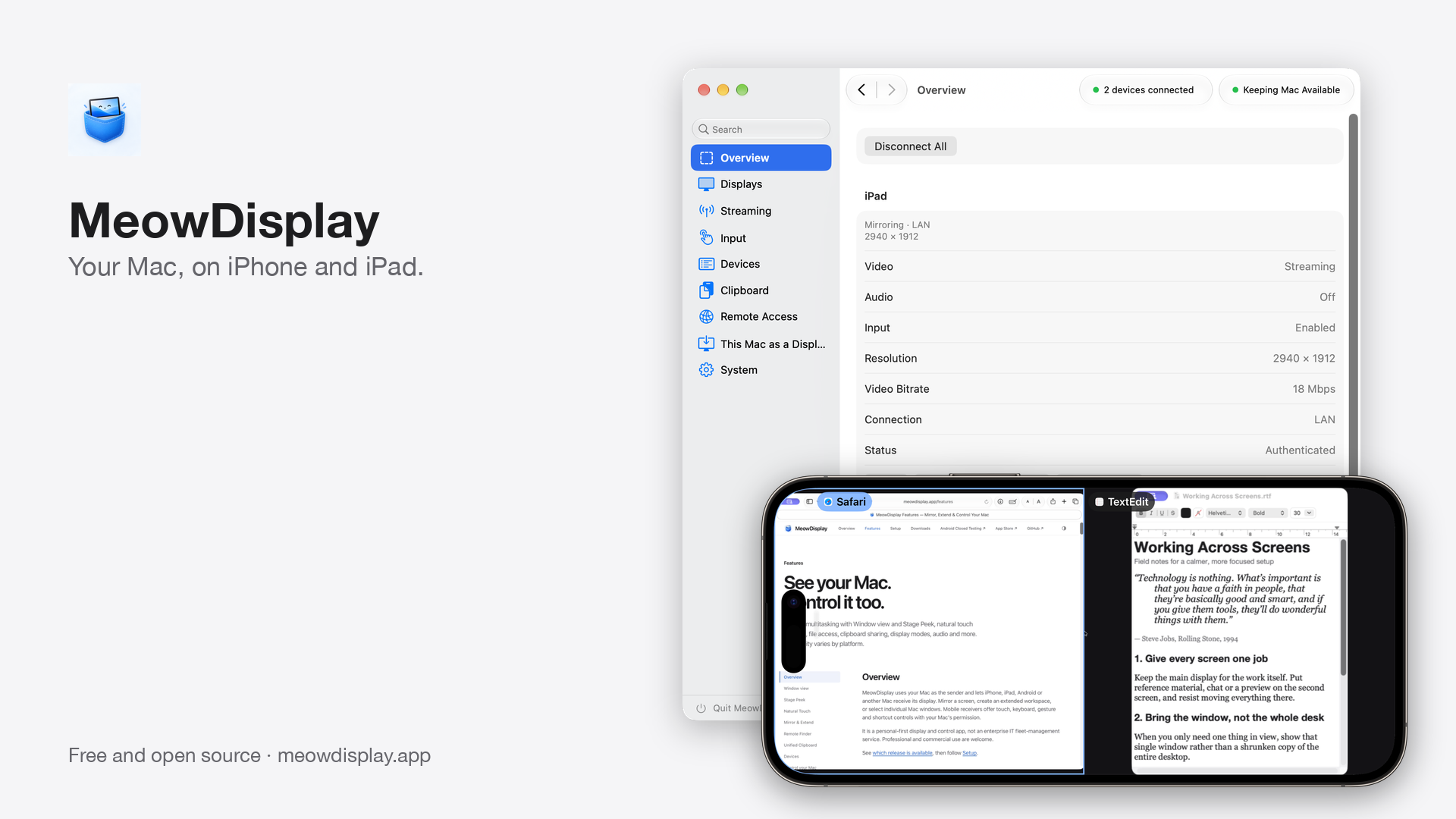
Hero Light
Hero Light3200 × 1800 · 813 KB · Download
Hero Transparent
Hero Transparent3200 × 1800 · 899 KB · Download
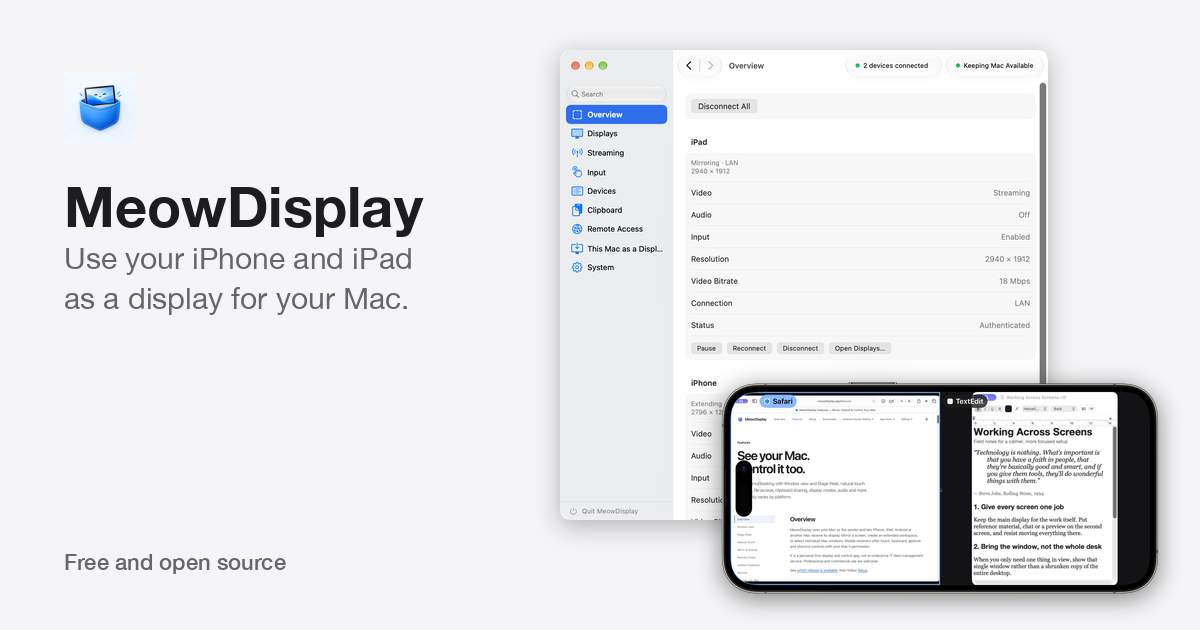
Social 1200x630
Social 1200x6301200 × 630 · 157 KB · Download
Square 1080 Stage Peek
Square 1080 Stage Peek1080 × 1080 · 514 KB · Download
Story 1080x1920
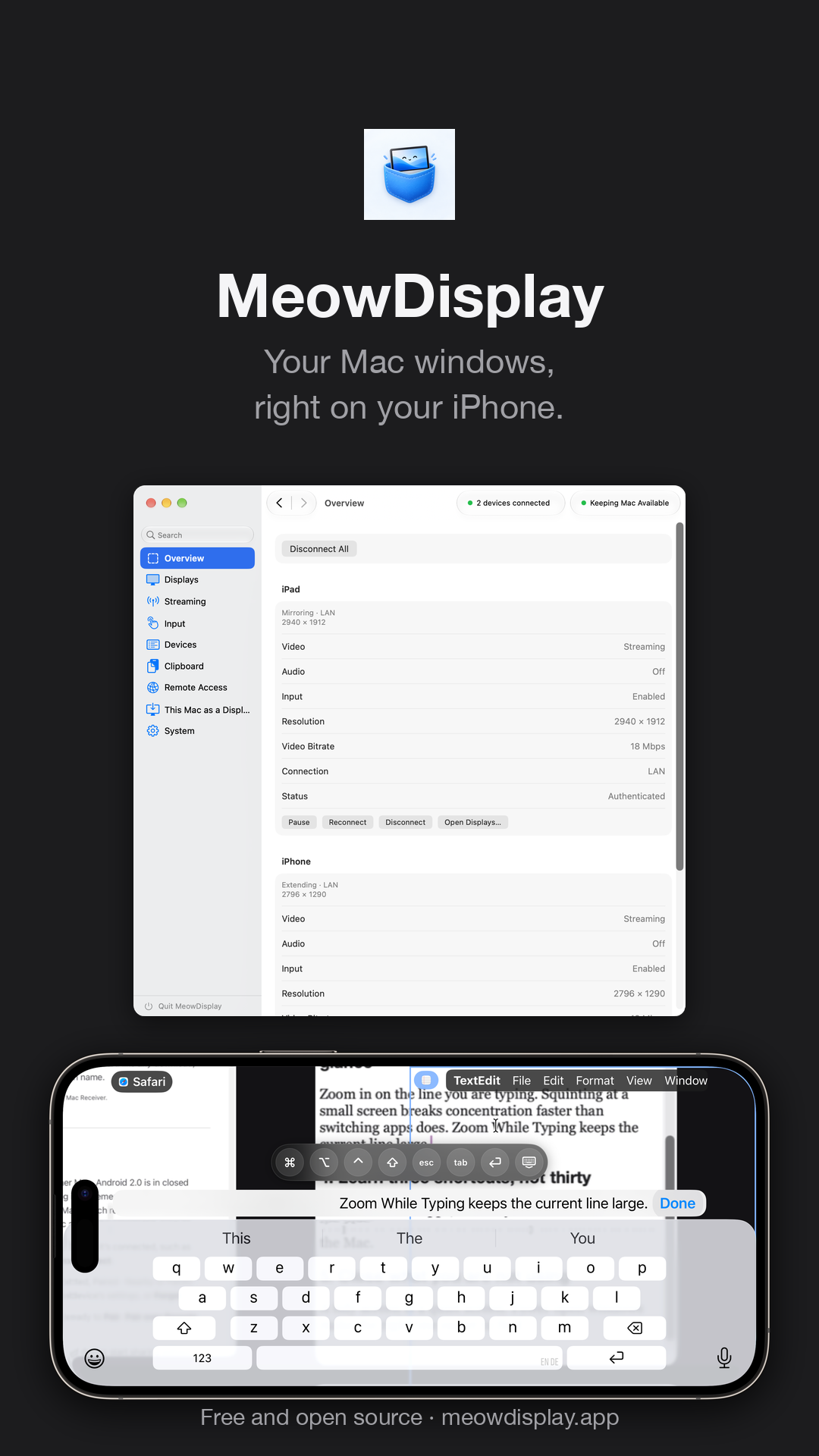
Story 1080x19201080 × 1920 · 366 KB · Download
Widescreen 1920x1080 Dark
Widescreen 1920x1080 Dark1920 × 1080 · 353 KB · Download
Widescreen 1920x1080 Light
Widescreen 1920x1080 Light1920 × 1080 · 357 KB · Download

Download all graphics · ZIP · 6.1 MB

Text & facts

Ready to quote.

One sentence

MeowDisplay is a free, open-source app that turns an iPhone or iPad into a display for your Mac, showing the whole desktop, an extended desktop or individual Mac windows you can control by touch.

About 50 words

MeowDisplay turns an iPhone or iPad into a second screen for a Mac. Mirror the desktop, extend it, or pick individual Mac windows and arrange them side by side. Touch controls, a keyboard with a Text Bar and Stage Peek window switching make it practical on a small screen. It is free and open source.

About 150 words

MeowDisplay is a free, open-source app that brings your Mac to an iPhone or iPad. Mirror an existing display, extend the desktop onto a new virtual display, or use Window view to show individual Mac windows rather than a shrunken copy of the whole screen. Panes can be arranged in splits and grids of up to nine windows on iPhone and iPad; on a phone, two or three larger panes are usually easiest to read.

Stage Peek lists open windows and running apps so you can switch, search or add a window to a pane. Touch controls include Direct Touch, Natural Touch and Trackpad modes, a control tray with modifier keys and shortcuts, and a keyboard with a Text Bar. Zoom While Typing keeps the line you are editing large.

Devices connect over USB or local Wi-Fi, or remotely over a private network you control, such as Tailscale. Devices are paired, sessions are encrypted, and the Mac decides who may control it.

Key capabilities

  1. Mirror, Extend or Window view, chosen per device.
  2. Window view panes: splits and grids of up to nine windows on iPhone and iPad.
  3. Stage Peek for finding, searching and switching Mac windows.
  4. Touch-first control: Direct Touch, Natural Touch and Trackpad, a control tray, keyboard, Text Bar and Zoom While Typing.
  5. USB, local Wi-Fi and private-network Remote Access, with pairing, TLS 1.3 and per-session control permission.

About the developer

MeowDisplay is developed independently by Jai Sukka, who publishes as raiseCatError. It began as a fork of OpenDisplay by Philip Poloczek, which provided a working low-level foundation; MeowDisplay has since been rebuilt and extended with its own receiver apps, Window view, Stage Peek, touch controls and Remote Access. The project is free and open source.

Full descriptions, long overview and fact sheet (Markdown)

Reviewer's guide

Try it in five minutes.

MeowDisplay is free. No review codes, licences or accounts are needed.

Set up

  1. Install MeowDisplay 2.0 for Mac from Downloads (macOS 14 or later) and grant Screen Recording; grant Accessibility to control the Mac.
  2. Install MeowDisplay on iPhone or iPad from the App Store.
  3. Connect by USB or on the same Wi-Fi, confirm the matching pairing code and approve on the Mac.

Five-minute demo

  1. Mirror the Mac on an iPad in landscape.
  2. Switch the iPad to Extend and drag a window onto it.
  3. On iPhone, open Window view and add a second window from Stage Peek.
  4. Use Stage Peek to search and switch a pane, or show Full Desktop.
  5. Open the keyboard, type in the Text Bar and watch Zoom While Typing.

Connections

USB (iPhone, iPad) needs no network. Local Wi-Fi finds devices nearby. Remote Access reaches an already paired Mac through a private-network address you provide, such as Tailscale; the address never grants trust.

Security

Pairing needs a matching code and approval on the Mac. Sessions use TLS 1.3 and pinned device identities. Control is a separate, per-session permission set on the Mac.

Known issues in 2.0.0

On iPad with the Custom control layout, rotating can leave Window view panes mis-sized until you relaunch (#129). On iPhone in landscape, the default Compact Dock in Stage Peek shows about one window at a time; choose Settings › Controls › Dock › Normal for more (#130). Android is in closed testing.

Reviewer's guide with story angles (Markdown) · 2.0.0 release notes · Troubleshooting

Brand

Icon and logo.

Two official files. Use the app icon wherever you would show an app, and the rounded logo where the mark needs to stand on its own, on light or dark backgrounds.


MeowDisplay app icon on a light background
App iconThe square master, as submitted to the App Store; platforms apply their own corner mask (shown masked here).1024 × 1024 PNG · Download
MeowDisplay logo on a dark background
LogoThe rounded mark with a transparent background, ready to place on any colour.512 × 512 transparent PNG · Download
  • Write MeowDisplay: one word, capital M and D.
  • Use the artwork as supplied; don't redraw, recolour, crop or stretch it.
  • Both files work on light and dark backgrounds.
  • Don't alter app screens or show features MeowDisplay doesn't have. Describe Android as closed testing.

Usage permission, brand and trademark notes · Asset provenance

Downloads

Take what you need.

CollectionFilesSizeDownload
Complete press kit45 files (incl. README)33.1 MBDownload ZIP
Original screenshots · PNG18 files (incl. README)10.0 MBDownload ZIP
Device mockups · transparent PNG5 files (incl. README)4.6 MBDownload ZIP
Promotional graphics · PNG11 files (incl. README)6.1 MBDownload ZIP
B-roll · MP4 and posters7 files (incl. README)11.1 MBDownload ZIP
Icon and logo · PNG3 files (incl. README)1.3 MBDownload ZIP
Descriptions, reviewer's guide, guidelines · Markdown, TXT6 files (incl. README)9 KBDownload ZIP

Contact

Covering MeowDisplay?

For interviews, questions or additional screenshots, email [email protected].

Bug reports and public questions: github.com/raiseCatError/meowdisplay/issues